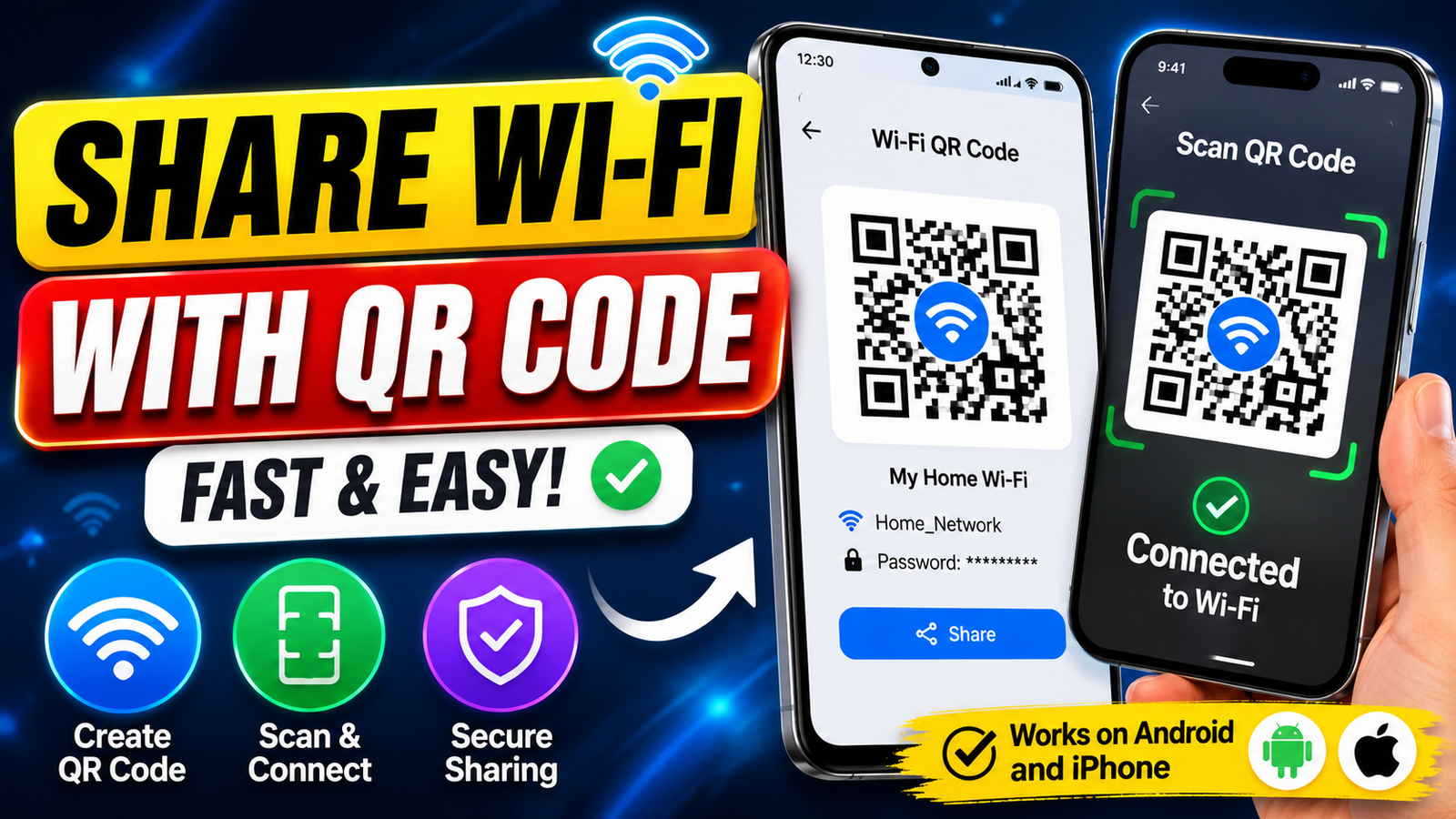
Sharing a Wi-Fi password can be annoying, especially when the password is long, complicated, or difficult to remember. Fortunately, you don’t always need to type it manually. A Wi-Fi QR code can make the process much quicker by allowing another device to scan the code and connect to the network.
Modern Android phones and iPhones offer convenient ways to share Wi-Fi details, while users with unsupported devices can also use a trusted QR code generator. In this guide, we’ll explain how Wi-Fi QR codes work, how to create one, how to share it safely, and what to do if scanning doesn’t work.
Also read: Best Android Volume Customization Apps With Neon RGB Effects
What Exactly Is a Wi-Fi QR Code?
A Wi-Fi QR code is a specially formatted QR code containing information required to connect to a wireless network.
Depending on the network, the code can contain:
- Wi-Fi network name or SSID
- Network password
- Security type
- Other connection information
When another compatible smartphone scans the code, it can recognize the stored Wi-Fi details and offer an option to join the network.
This can be particularly useful when guests visit your home or when a business wants to provide customers with convenient internet access.
Why Share Wi-Fi Through a QR Code?
The biggest advantage is convenience. Instead of reading a password character by character, you can simply show the QR code to the other person.
Here are some reasons people use this method:
- Faster than typing a password
- Reduces typing errors
- Convenient for guests
- Useful for homes and offices
- Easy to print and display
- Supported by many modern smartphones
You can keep the QR code on your phone or print it and place it somewhere visitors can easily access.
Create a Wi-Fi QR Code on Android
Many Android smartphones have a built-in Wi-Fi sharing feature. The exact menu names can vary depending on the manufacturer and Android version.
Try the following steps:
- Connect your Android phone to the Wi-Fi network.
- Open Settings.
- Go to Wi-Fi or Network & Internet.
- Select the network you are currently connected to.
- Look for Share, QR Code, or a similar option.
- Verify your identity if your phone asks for a PIN, fingerprint, or other authentication.
A QR code should appear on the screen. Another compatible phone can scan it to connect to the same network.
Save or Print the Code
If you frequently share your Wi-Fi connection, you can take a screenshot of the QR code for later use. You can also print it and place it in a convenient location.
However, remember that anyone who can access the QR code may potentially obtain your Wi-Fi connection details, so avoid displaying it publicly if it contains credentials for your private network.
Share Wi-Fi From an Android Hotspot
A mobile hotspot is different from sharing your regular Wi-Fi network, but it can also provide internet access to another device.
To use a hotspot:
- Open Quick Settings on your Android phone.
- Turn on Mobile Hotspot.
- Open Wi-Fi settings on the other device.
- Find your hotspot name.
- Enter the hotspot password if required.
Keep in mind that hotspot connections normally use your mobile data. Depending on your carrier and plan, this may affect your available data allowance.
How to Share Wi-Fi on an iPhone
iPhones provide several convenient ways to share Wi-Fi information. On supported versions of iOS, you can use the available Wi-Fi sharing features to help another Apple device connect without manually entering the password.
For compatible devices, make sure Wi-Fi and Bluetooth are enabled and that the devices are nearby. The person sharing the network may then receive a prompt asking whether they want to share the Wi-Fi password.
Another option is to use a Wi-Fi QR code when you want to share the network with a broader range of devices.
Generate a Wi-Fi QR Code Online
If your phone doesn’t provide a built-in QR option, you can use a reputable QR code generator that supports Wi-Fi networks.
Before creating one, collect the following information:
- Network name
- Wi-Fi password
- Security type
Enter these details carefully. A single incorrect character can cause the QR code to fail when someone tries to connect.
Once generated, download the QR code and test it before printing or distributing it.
Choose the Right Image Format
For normal digital sharing, a PNG image is usually sufficient. If you plan to print the QR code at a larger size, an SVG file can be useful because it can be resized without losing sharpness.
Regardless of the format, always test the finished code before relying on it.
Static vs. Dynamic Wi-Fi QR Codes
Wi-Fi QR codes can generally be created in static or dynamic formats, depending on the service you use.
Static QR Code
A static QR code stores the Wi-Fi information directly in the code.
It can be useful for:
- Homes
- Small offices
- Guest rooms
- Personal networks
The main limitation is that if you change your Wi-Fi password, you will generally need to create a new QR code.
Dynamic QR Code
A dynamic QR code typically works through a managed service, allowing the destination information to be changed without replacing the physical QR code.
This can be useful for businesses, hotels, event venues, or other locations where network information changes regularly.
Some services may also provide additional management or scanning statistics, depending on their plan.
Protect Your Wi-Fi When Using QR Codes
Convenience shouldn’t come at the expense of network security. A Wi-Fi QR code containing your main network credentials should not be shared without considering who can access it.
Use a Guest Network
If your router supports guest networking, consider creating a separate network for visitors.
A guest network can help separate visitors from devices connected to your primary network, such as:
- Personal computers
- Smartphones
- Printers
- Smart home devices
- Network storage
This provides an additional layer of separation while still allowing guests to access the internet.
Create a New QR Code After Changing the Password
If you change your Wi-Fi password, an old static QR code will contain outdated information.
Create a replacement QR code and remove old printed copies to prevent confusion.
How to Make Your QR Code Easier to Scan
A poorly printed or poorly displayed QR code may be difficult for smartphone cameras to recognize.
For better results:
- Use a clear, high-resolution QR code.
- Maintain sufficient contrast between the code and its background.
- Avoid placing graphics over important QR patterns.
- Print it at a reasonable size.
- Keep the code free from scratches or damage.
- Avoid strong reflections when displaying it on a screen.
Adding a simple heading such as “Scan to Connect” can also make its purpose immediately clear.
Where Can You Display a Wi-Fi QR Code?
Depending on your situation, you can place the code in locations such as:
- Home guest rooms
- Office reception areas
- Meeting rooms
- Café counters
- Hotel rooms
- Waiting areas
- Event registration desks
For private networks, avoid placing the QR code somewhere that anyone outside your intended group can easily access it.
How to Scan a Wi-Fi QR Code
On Android
Open the phone’s Camera app and point it toward the QR code. On supported devices, a notification or connection option should appear.
If the regular camera doesn’t recognize the code, Google Lens or another built-in scanning feature may work.
On iPhone
Open the Camera app and point it toward the QR code. If iOS recognizes the Wi-Fi information, a notification or connection prompt should appear.
Older devices may have different capabilities and may require another method of connecting.
Common Wi-Fi QR Code Problems
The QR Code Won’t Scan
Try increasing the screen brightness if the code is displayed digitally. If it is printed, make sure the paper is flat and the code is not damaged.
You can also move the camera slightly closer or farther away.
The Code Scans but Wi-Fi Doesn’t Connect
Check whether the Wi-Fi password has changed. Also verify that the network name and security information used to create the QR code were correct.
If the details are outdated, generate a new QR code.
An Older Phone Doesn’t Support It
Not every smartphone handles Wi-Fi QR codes in the same way. If automatic connection isn’t supported, the user may need to scan the code with a compatible app or enter the Wi-Fi password manually.
Final Thoughts
A Wi-Fi QR code is a simple way to make wireless network sharing faster and more convenient. Instead of repeatedly telling guests a complicated password, you can let them scan a code and connect with minimal effort.
Android users may find a built-in QR sharing option in their Wi-Fi settings, while iPhone users can use Apple’s available Wi-Fi sharing features or a suitable QR code method. If your device doesn’t support QR sharing, a reputable generator can be another option.
For the best experience, test your QR code before sharing it, keep the network information updated, and consider using a guest network when providing internet access to visitors.