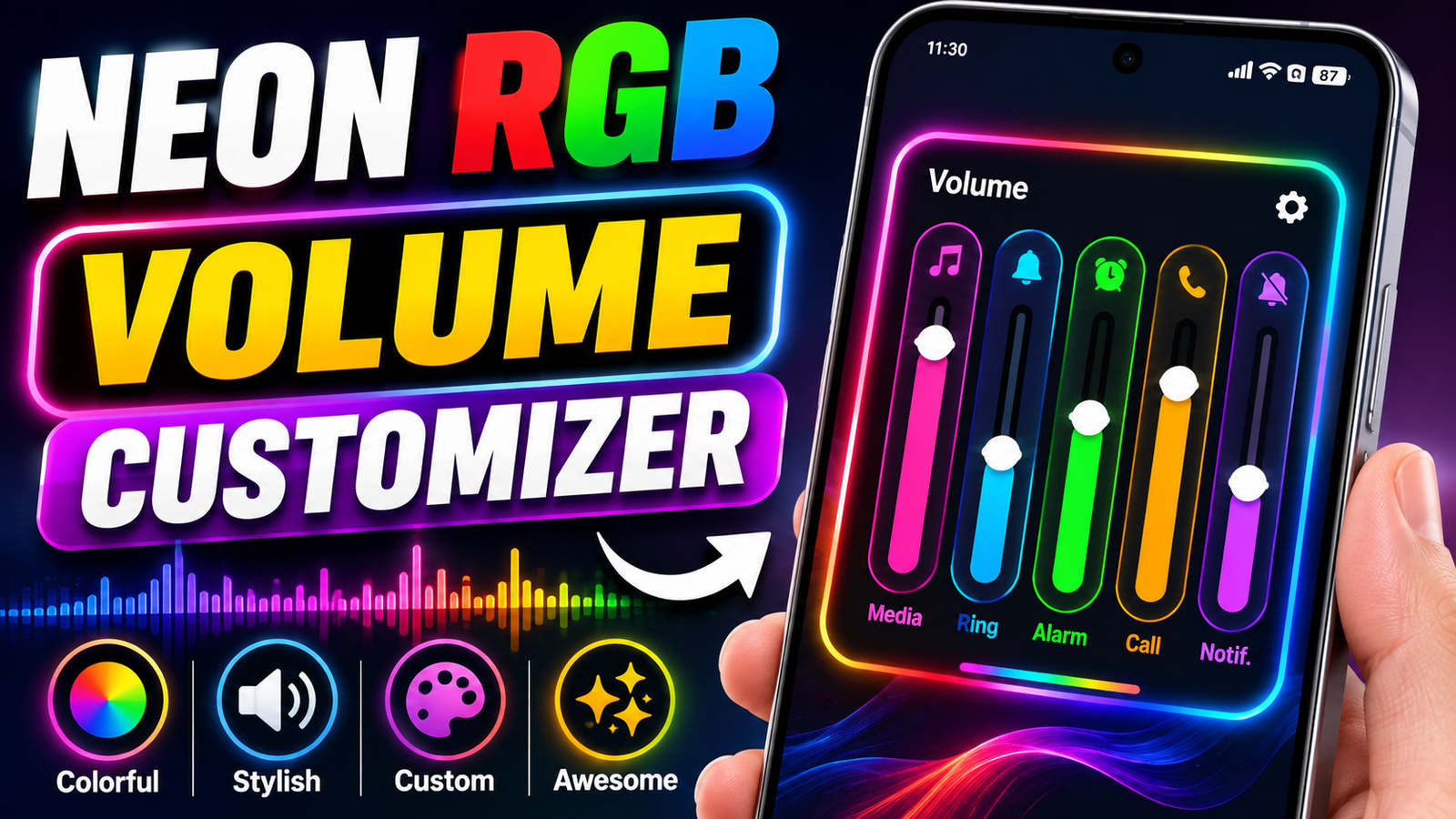
Android phones already offer plenty of customization options, but the volume panel is often overlooked. On many devices, the default volume controls have a simple design that may not match the rest of your phone’s theme. If you want something more colorful and visually interesting, a volume customization app can give the interface a completely different look.
Neon RGB volume apps are particularly popular among users who like glowing colors, animated effects, gaming-style interfaces, and modern UI designs. These apps can replace or customize the appearance of the standard volume panel without requiring major changes to the phone.
In this guide, we’ll look at what Android volume customization apps offer, their important features, how to set one up, and what you should consider before installing one.
Also read: Licowa AI Photo Editor: Explore Photo Editing, Collages and Live Wallpapers in One App
What Is an Android Volume Customization App?
An Android volume customization app changes the visual appearance of the volume controls that appear when you press the physical volume buttons.
Depending on the app and your Android version, you may be able to customize things such as:
- Volume slider design
- Colors and gradients
- Neon or RGB effects
- Slider position
- Panel size
- Icons and layouts
- Animation styles
Instead of seeing the standard volume interface, you can create a design that better matches your wallpaper, icons, or overall phone theme.
Why Choose a Neon RGB Volume Panel?
Neon RGB designs are popular because they give the phone a more vibrant appearance. Bright colors and glowing effects can make an otherwise ordinary interface look more modern.
These styles can be especially appealing to users who enjoy gaming-inspired designs or colorful customization. A dark phone theme combined with bright RGB colors can also create a distinctive visual effect.
However, you don’t necessarily need a flashy design. Many customization apps provide simpler options if you prefer a cleaner interface.
Features to Look For
Not every volume customization app provides the same tools. Before installing one, check which features are actually included.
Neon and RGB Themes
A good customization app may offer several colorful themes, including neon blue, purple, green, red, and multicolor RGB effects.
Some apps may also allow you to create your own color combinations instead of relying only on preset designs.
Adjustable Volume Slider
Customization becomes more useful when you can change the size and position of the volume panel.
Depending on the app, you may be able to adjust:
- Slider thickness
- Panel width
- Screen position
- Corner style
- Transparency
This makes it easier to create a volume panel that doesn’t interfere with other content on your screen.
Animated Effects
Animations can make the volume interface feel more dynamic. For example, the slider may glow, change colors, or use a transition when you increase or decrease the volume.
If you prefer a minimal look, however, it may be better to choose a design with limited animation.
Multiple Volume Controls
Some customization tools provide separate controls for different audio categories, such as media, ringtone, notifications, alarms, or system sounds.
Having these controls visible can make volume adjustments more convenient, although the exact options depend on your Android device and the app.
How to Set Up a Volume Customization App
The setup process can vary between applications, but it is generally straightforward.
- Download a trusted volume customization app from the Google Play Store.
- Open the application after installation.
- Read the requested permissions carefully.
- Enable the settings required for the custom volume panel.
- Choose a theme or neon RGB design.
- Adjust the color, size, position, and animation settings.
- Press your phone’s volume button to test the new interface.
If the customized panel doesn’t appear, check the app’s accessibility or display-related settings and make sure the required permissions are enabled.
Does It Work on Every Android Phone?
Not necessarily. Android manufacturers often modify the system interface, and different Android versions can handle system-level customization differently.
A volume customization app may work differently on Samsung, Xiaomi, OnePlus, Motorola, Google Pixel, and other devices. Some phones may also restrict certain permissions because of their security or battery-management systems.
Before installing an app, check its compatibility information and recent user reviews.
Performance and Battery Considerations
A volume customization app normally does not require significant resources, but the impact can vary from one application to another.
Apps that constantly use animations, overlays, or background services may consume more resources than a simple static theme.
If you notice unusual battery drain, lag, or delayed volume controls after installing an app, consider reducing animations or disabling the customization.
It’s also worth checking whether the app continues running in the background when you aren’t using the volume controls.
Safety and Privacy Tips
Because volume customization apps may require special permissions to display their interface over other applications or interact with accessibility features, it’s important to install them carefully.
Keep these points in mind:
- Download apps from reputable sources.
- Check the developer information before installing.
- Read recent reviews rather than relying only on the overall rating.
- Review the permissions requested by the app.
- Avoid apps that request unrelated or unnecessary access.
- Keep the application updated when a trusted update is available.
Don’t grant sensitive permissions simply because an app asks for them. Make sure you understand why a particular permission is needed.
Tips for Creating a Better Neon Look
You don’t need to use every available effect to make your volume panel attractive.
A few simple choices can produce a cleaner result:
Match Your Wallpaper
Choose RGB colors that complement your current wallpaper. For example, blue and purple effects can work well with darker wallpapers.
Avoid Excessive Animation
Too many animations may make the interface look busy. A subtle glow or smooth transition can often look better than several effects running at once.
Keep the Panel Easy to Use
Customization should not make the volume controls difficult to access. Choose a size and position that keeps the interface visible without covering important content.
Try a Minimal RGB Design
If bright rainbow colors aren’t your style, try a single neon color with a soft glow. This can provide a customized appearance while maintaining a clean look.
Who Should Try These Apps?
Volume customization apps can be useful for different types of Android users, including:
- Smartphone customization enthusiasts
- Gaming fans
- Users who enjoy RGB themes
- Content creators recording phone tutorials
- People who want a different Android interface
- Users who prefer colorful or modern UI designs
They are particularly useful if you enjoy changing small elements of your phone’s interface rather than using the default appearance.
Possible Limitations
Although these apps can improve the visual experience, they aren’t perfect for every device.
Some possible limitations include:
- Compatibility problems with certain Android versions
- Ads in free versions
- Additional permissions
- Occasional overlay issues
- Higher battery usage with heavy animations
- Features that may vary between devices
For this reason, it’s a good idea to test an app before relying on it as a permanent customization.
Final Thoughts
A Neon RGB volume customization app can be an easy way to give your Android phone a more personalized appearance. Instead of using the standard volume panel, you can experiment with glowing colors, custom layouts, animations, and different slider styles.
The best choice depends on your phone, Android version, and preferred design. Before installing anything, check compatibility, review permissions, and choose a trustworthy application.
If you enjoy customizing your smartphone, changing the volume panel is a small adjustment that can make everyday interactions feel much more personal.