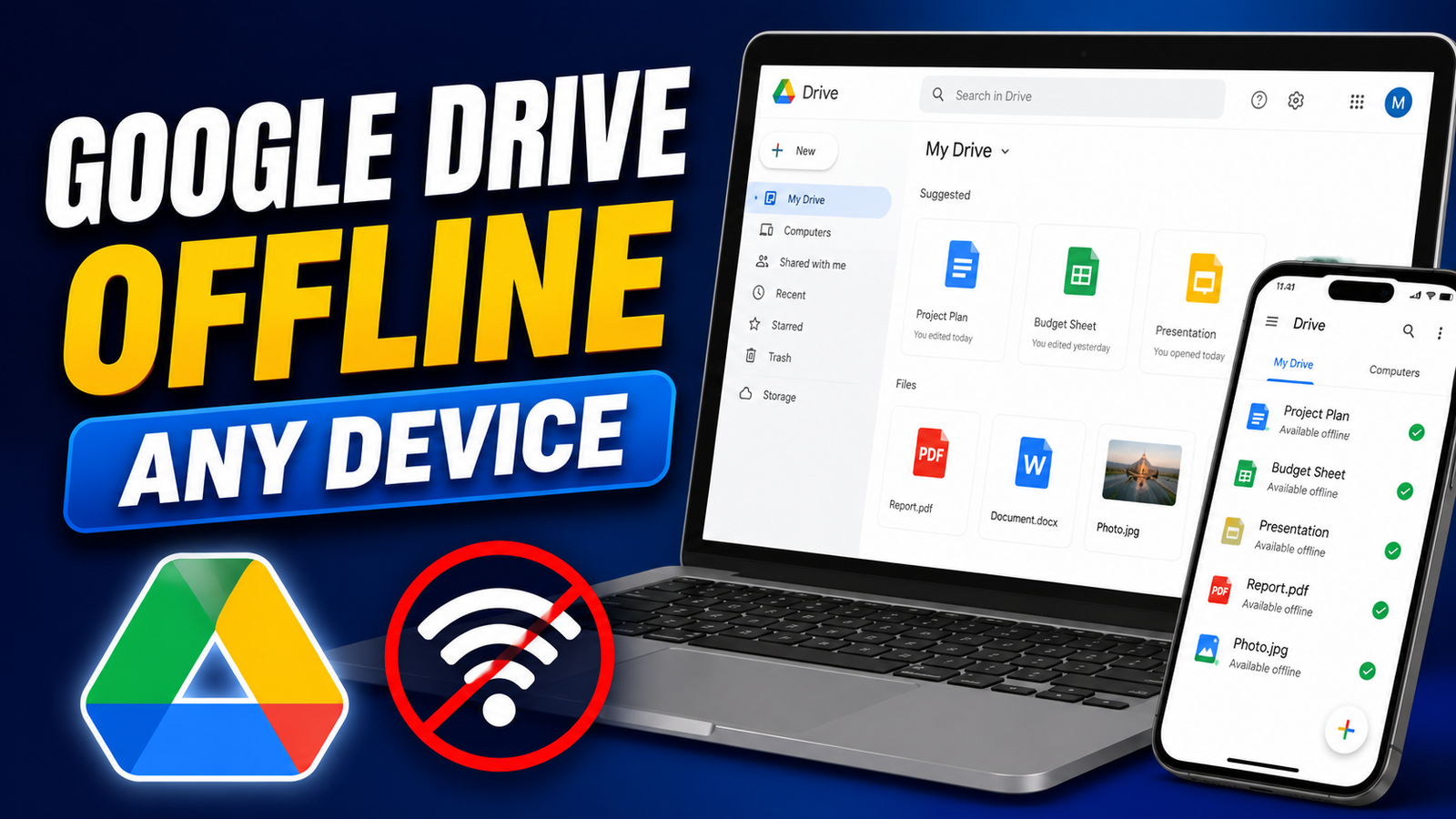
Google Drive is normally associated with cloud storage and internet access, but you can also use selected files when you’re offline. This can be especially useful while traveling, working in places with poor connectivity, or dealing with temporary network problems.
The important thing is to prepare your files before going offline. Once offline access is enabled, you can open supported files, make changes, and continue working. When your device reconnects to the internet, Google can sync the changes automatically.
Here’s how to set up and use Google Drive offline on your phone and computer.
Also read: Apple Music May Introduce “Made With AI” Labels for AI-Generated Songs
What Does Google Drive Offline Mode Do?
Offline access allows you to keep selected files available on your device even when there is no active internet connection.
Depending on the file type and device, you can:
- Open saved files without internet
- Edit Google Docs, Sheets, and Slides
- Work with selected non-Google files
- Continue making changes while offline
- Sync changes after reconnecting
However, not every file in your Drive is automatically available offline. You generally need to select the files you want to access beforehand.
How to Use Google Drive Offline on Android and iPhone
The easiest way to prepare individual files for offline use is through the Google Drive mobile app.
Save a File for Offline Access
Follow these steps:
- Open the Google Drive app.
- Sign in to your Google account.
- Browse to the file you need.
- Tap the three-dot menu beside the file.
- Select Available offline.
Google Drive will prepare the selected file for offline access on your device.
You can repeat these steps for any other important files you may need without an internet connection.
How to Work on Google Docs, Sheets, and Slides Offline
If your work involves documents, spreadsheets, or presentations, Google’s individual apps can also support offline work when the required files have been made available offline.
Google Docs
Open the Docs app and locate the document you want to use. Open its menu and enable the Available offline option.
You can then continue editing the document without an internet connection.
Google Sheets
For spreadsheets, open the Sheets app and select the required file. Use the file menu to make it available offline.
Your changes can remain stored locally until your internet connection is restored.
Google Slides
The same approach works with presentations. Select the presentation you need and enable offline availability before leaving an area with internet access.
Keep This in Mind
Offline changes are initially stored on your device. People working with you may not see those changes until your device reconnects and the file synchronizes.
If multiple people make changes while you are offline, Google may need to handle conflicting edits when synchronization takes place.
Enable Google Drive Offline on a Computer
Computer users can access Drive files offline through supported browser settings and Google Drive for Desktop.
For the browser-based method, Google recommends using Google Chrome.
Turn On Offline Access in Chrome
Before disconnecting from the internet:
- Open Chrome on your computer.
- Sign in to your Google account.
- Open Google Drive.
- Click the Settings gear icon.
- Find the Offline section.
- Turn on the option for working with Google Docs, Sheets, and Slides offline.
After enabling the feature, Drive can prepare supported files for offline use.
It’s best to complete this setup while you still have a stable internet connection.
Use Google Drive for Desktop
Another option for computer users is Google Drive for Desktop.
After installing it, Drive creates an accessible location on your computer where your Google Drive content can be managed.
Depending on your settings, files can be streamed or mirrored. Files that have been made available offline can remain accessible even when your computer is disconnected from the internet.
On Windows, you can access Drive through File Explorer, while Mac users can find it through Finder.
This option can be particularly convenient if you regularly work with Drive files from your computer.
Can You Use PDFs, Images, and Office Files Offline?
Yes, Google Drive can also store many types of files locally for offline access.
These may include:
- PDF documents
- Images
- Microsoft Word files
- Excel spreadsheets
- PowerPoint presentations
- Other supported file formats
On a computer, right-click a file in the Google Drive location and look for the Available offline option.
If the file has been successfully downloaded or synchronized, you should be able to access it without an internet connection.
How to Check Whether a File Is Available Offline
Before leaving your Wi-Fi connection, it’s a good idea to verify that important files are actually available offline.
Look for the offline availability indicator associated with the file. On supported Drive setups, a status or checkmark can indicate that the file has been downloaded or prepared for offline use.
For important work, test the file while temporarily disconnected from the internet. This can help you avoid discovering that a file wasn’t properly saved after you are already offline.
What Happens When You Reconnect?
Once your device gets an internet connection again, offline changes can synchronize with Google Drive.
For example, if you edit a document while traveling, those changes can be uploaded when your device reconnects.
The exact synchronization behavior can depend on the file type, device, and Drive configuration.
If you were working on shared files, give Drive enough time to finish synchronization before closing the app or shutting down your device.
Common Mistakes to Avoid
Offline mode is easy to use, but a few mistakes can cause problems.
Don’t Wait Until You’re Offline
You generally need to enable offline access while you still have an internet connection. Trying to prepare a file after disconnecting may not work.
Don’t Assume Every File Is Available
Simply having a file in your Google Drive account does not necessarily mean it is stored locally. Select important files individually or configure your desktop setup appropriately.
Check Storage Space
Offline files take up storage on your device. If your phone or computer has very little free space, downloading a large number of files may become difficult.
Be Careful With Shared Files
If other people are editing the same document while you are offline, synchronization can become more complicated when you reconnect.
Is Google Drive Offline Useful?
For many users, offline access can be extremely convenient. Students can review notes while traveling, professionals can continue editing documents during a flight, and anyone with an unreliable connection can keep working without constantly waiting for the internet.
The main advantage is simple: you can prepare in advance and keep working even when your connection disappears.
Final Thoughts
Google Drive doesn’t have to stop being useful just because you lose your internet connection. By enabling offline access ahead of time, you can continue using selected documents, spreadsheets, presentations, and other supported files on your phone or computer.
For mobile users, the Google Drive, Docs, Sheets, and Slides apps provide convenient ways to prepare individual files. On computers, Chrome and Google Drive for Desktop offer additional offline options.
The key is to set everything up before you go offline. Check your important files, make sure they are available locally, and allow enough time for synchronization. Once your internet connection returns, your offline changes can sync back to Drive and keep your work up to date.