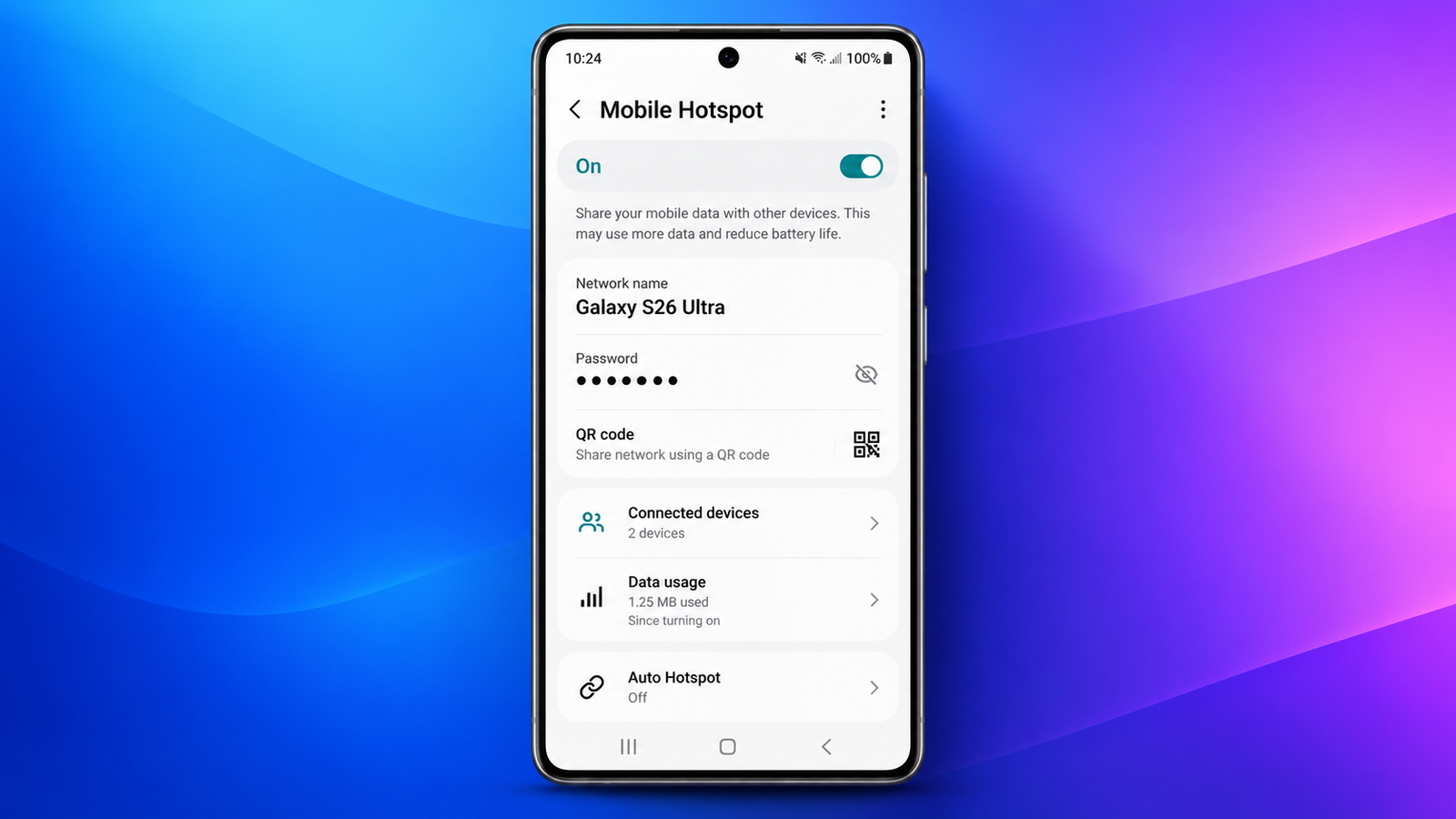
A reliable internet connection is essential for work, entertainment, and everyday activities. But what happens when Wi-Fi is unavailable? Your smartphone can help by sharing its mobile internet connection with other devices through a feature called a mobile hotspot.
Whether you use an iPhone, Samsung Galaxy, or Google Pixel, you can turn your phone into a portable internet connection for laptops, tablets, and other compatible devices.
In this guide, you’ll learn how to enable a mobile hotspot, connect other devices, manage data usage, and keep your connection secure.
Also read: What is JanSamarth Loan? How to Apply Online for Government Loans
What Is a Mobile Hotspot?
A mobile hotspot allows your smartphone to create a wireless network using its cellular data connection. Other devices can connect to this network just as they would connect to regular Wi-Fi.
For example, if you’re working on a laptop in a location without Wi-Fi, you can activate your phone’s hotspot and use its mobile internet.
Mobile hotspots are useful for:
- Connecting laptops and tablets while travelling.
- Accessing the internet during Wi-Fi outages.
- Working remotely from locations without broadband.
- Connecting compatible smart devices.
The connection speed depends on your cellular coverage, network congestion, phone, and mobile plan.
Check Your Mobile Plan Before Using a Hotspot
Before sharing your internet connection, check whether your mobile plan supports hotspot usage.
Depending on your carrier, your plan may include a separate hotspot data allowance, speed restrictions, or additional charges. Even plans offering large amounts of mobile data may have specific limits for tethering.
If you regularly stream videos, download files, or attend online meetings through your hotspot, monitor your data consumption to avoid unexpected restrictions.
How to Turn Your iPhone Into a Mobile Hotspot
Apple provides a built-in Personal Hotspot feature that lets supported iPhones share cellular internet with other devices.
Follow these steps:
- Open the Settings app on your iPhone.
- Tap Personal Hotspot. If necessary, open Cellular first.
- Enable Allow Others to Join.
- Check the Wi-Fi password displayed on the screen.
- Open Wi-Fi settings on your laptop or another device.
- Select your iPhone’s network and enter the password.
Your connected device should now be able to access the internet through your iPhone.
Change Your iPhone Hotspot Password
To update your password, open Settings and navigate to Personal Hotspot. Tap the Wi-Fi password option and enter a new password.
Use a strong, unique password rather than easily guessed information such as your birthday or phone number.
If the Personal Hotspot option is unavailable, check whether your carrier and mobile plan support this feature.
How to Enable a Hotspot on Samsung Galaxy
Samsung Galaxy smartphones include a dedicated Mobile Hotspot setting.
Here’s how to activate it:
- Open Settings on your Samsung phone.
- Tap Connections.
- Select Mobile Hotspot and Tethering.
- Open Mobile Hotspot.
- Switch it on.
- Check the network name and password before connecting another device.
You can also customize the hotspot name, password, and supported network settings from this menu.
The exact options may differ depending on your Galaxy model and One UI version.
How to Turn a Google Pixel Into a Hotspot
Google Pixel phones offer a similar feature through the Network & internet settings.
- Open Settings.
- Select Network & internet.
- Tap Hotspot & tethering.
- Choose Wi-Fi hotspot.
- Turn on the hotspot.
- View or change the network name and password if required.
Once activated, your Pixel will create a wireless network that other compatible devices can join.
Connect Your Laptop or Tablet to a Phone Hotspot
After enabling the hotspot, connecting another device is straightforward.
- Open Wi-Fi settings on your laptop, tablet, or computer.
- Find your smartphone’s hotspot name.
- Select the network.
- Enter the hotspot password.
- Wait for the connection to complete.
Your connected device will use your phone’s cellular data to access the internet.
For most users, Wi-Fi is the simplest connection method because it doesn’t require additional cables or accessories.
Other Ways to Share Your Phone’s Internet
Apart from Wi-Fi, supported smartphones offer other tethering options.
USB Tethering
Connect your phone to a compatible computer using a USB cable. Enable the appropriate tethering option on your device. Some computers may require additional software or permission before the connection works.
USB tethering can be useful when you prefer a wired connection.
Bluetooth Tethering
Bluetooth tethering allows compatible devices to share your phone’s internet through a paired Bluetooth connection. It can be useful in certain situations, although Wi-Fi is generally more convenient.
Some Android phones also support Ethernet tethering through compatible adapters.
How to Keep Your Mobile Hotspot Secure
A hotspot should always be protected with a strong password to prevent unauthorized access.
Follow these precautions:
- Use a unique password that is difficult to guess.
- Share your hotspot details only with trusted people.
- Check connected devices through your phone’s hotspot settings.
- Disconnect the hotspot when it is no longer needed.
- Change the password if you suspect someone has accessed your network without permission.
Some Android devices also let you block individual connected devices.
Tips to Improve Hotspot Speed and Battery Life
Using your phone as a hotspot can consume additional battery power and mobile data. A few simple adjustments can help improve the experience.
Find better cellular coverage: Move closer to a window or an open area if your connection is slow. A stronger cellular signal can help improve stability.
Monitor data usage: Video streaming, cloud backups, and large downloads can consume substantial amounts of mobile data. Check your carrier’s usage information regularly.
Keep your phone charged: For longer sessions, connect your phone to a charger when practical.
Choose compatible Wi-Fi settings: Some Android phones allow you to switch between Wi-Fi bands. Select a setting supported by your connected devices and suitable for your surroundings.
Turn off the hotspot afterward: Disabling it when you’re finished can help conserve battery power and reduce unnecessary connections.
Final Thoughts
Turning your iPhone or Android smartphone into a mobile hotspot is a convenient way to access the internet when regular Wi-Fi isn’t available. Whether you use an iPhone, Samsung Galaxy, or Google Pixel, the built-in hotspot feature makes it easy to connect laptops, tablets, and other compatible devices.
Before using this feature regularly, check your mobile plan, protect your hotspot with a strong password, and keep an eye on battery and data consumption.
With a few simple settings, your smartphone can become a useful portable internet connection for travelling, remote work, and everyday situations.