Google Discover is a convenient feature that delivers personalized news, videos, and articles directly to your Android device. As you scroll through the feed, you may notice that video previews begin playing automatically. While these previews can make content more engaging, they may also consume mobile data, drain battery life, and interrupt your browsing experience.
Also read: True Phone Dialer and Contacts: Personalize Your Android Calling Experience
Fortunately, Google allows you to control how video previews behave. With a quick change in the Google app settings, you can disable autoplay or limit it to Wi-Fi connections.
What Is Video Autoplay in Google Discover?
Video autoplay is a feature that automatically plays short video previews while you browse the Discover feed. These previews are muted by default and are intended to give users a quick look at the content before they decide whether to watch it.
Although the videos are only previews, they still use internet data and require your phone to process additional visual content.
Why You Might Want to Turn Off Autoplay
Many Android users choose to disable autoplay for several practical reasons.
Some of the main benefits include:
- Reducing mobile data usage
- Minimizing distractions while scrolling
- Improving battery efficiency during extended browsing
- Creating a cleaner and more focused Discover feed
- Giving you full control over when videos start playing
If you mainly use mobile data or prefer a distraction-free experience, turning off autoplay can be a useful adjustment.
How to Disable Video Autoplay in Google Discover
Changing this setting only takes a minute.
Follow these steps:
- Open the Google app on your Android phone.
- Tap your profile picture in the top-right corner.
- Select Settings.
- Tap General.
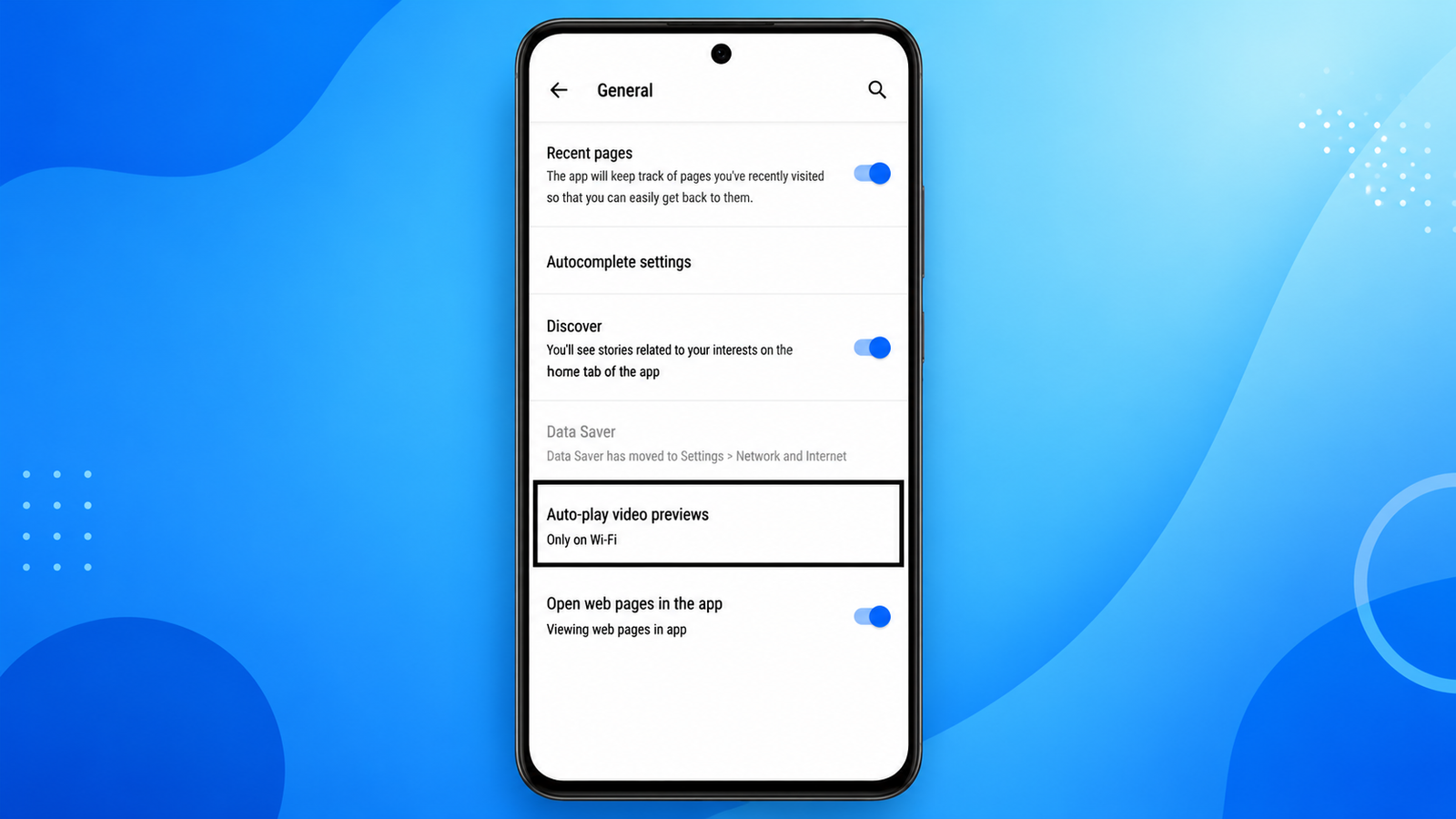
- Scroll down and choose Autoplay video previews.
- Select the option that best matches your preference.
Your changes are saved automatically, so there is no need to restart the app.
Understanding the Available Autoplay Options
Google provides multiple autoplay settings so users can choose what works best for them.
Never
Selecting Never completely disables automatic video previews.
Videos will remain as static thumbnails until you tap them manually. This option is ideal for users who want to save mobile data and avoid unnecessary motion while browsing.
Only on Wi-Fi
If you enjoy video previews but don’t want them using mobile data, choose Only on Wi-Fi.
With this setting, autoplay works only when your device is connected to a Wi-Fi network.
On Wi-Fi and Mobile Data
This option keeps autoplay enabled regardless of your internet connection.
Video previews will automatically play whether you’re using Wi-Fi or mobile data.
Benefits of Turning Off Video Previews
Disabling autoplay can improve your browsing experience in several ways.
You may notice:
- Lower mobile data consumption
- Fewer moving elements while reading articles
- Better battery efficiency during long browsing sessions
- A cleaner and less distracting feed
- Greater control over media playback
These small improvements can make Discover feel more organized, especially if you primarily use it to read news and articles.
Can You Re-Enable Autoplay Later?
Yes. The autoplay setting can be changed at any time.
If you decide you’d like video previews again, simply return to the Autoplay video previews setting in the Google app and select a different option.
Google allows users to switch between the available settings whenever their browsing preferences change.
Things to Keep in Mind
The appearance of certain menus may vary slightly depending on:
- Your Android version
- The version of the Google app installed
- Your device manufacturer
If you cannot find the autoplay setting, updating the Google app through the Google Play Store may help ensure you have the latest available options.
Also read: Best AI Tool for Photo Editing in 2026: Top Picks for Stunning Edits
Final Thoughts
Video autoplay in Google Discover can make browsing more interactive, but it isn’t necessary for everyone. If you’d rather save mobile data, reduce battery usage, or enjoy a quieter reading experience, disabling video previews is a simple solution.
Since Google offers flexible autoplay settings, you can easily choose whether previews never play, play only on Wi-Fi, or remain enabled at all times. This gives you full control over how you experience content in your Discover feed while keeping your browsing tailored to your preferences.