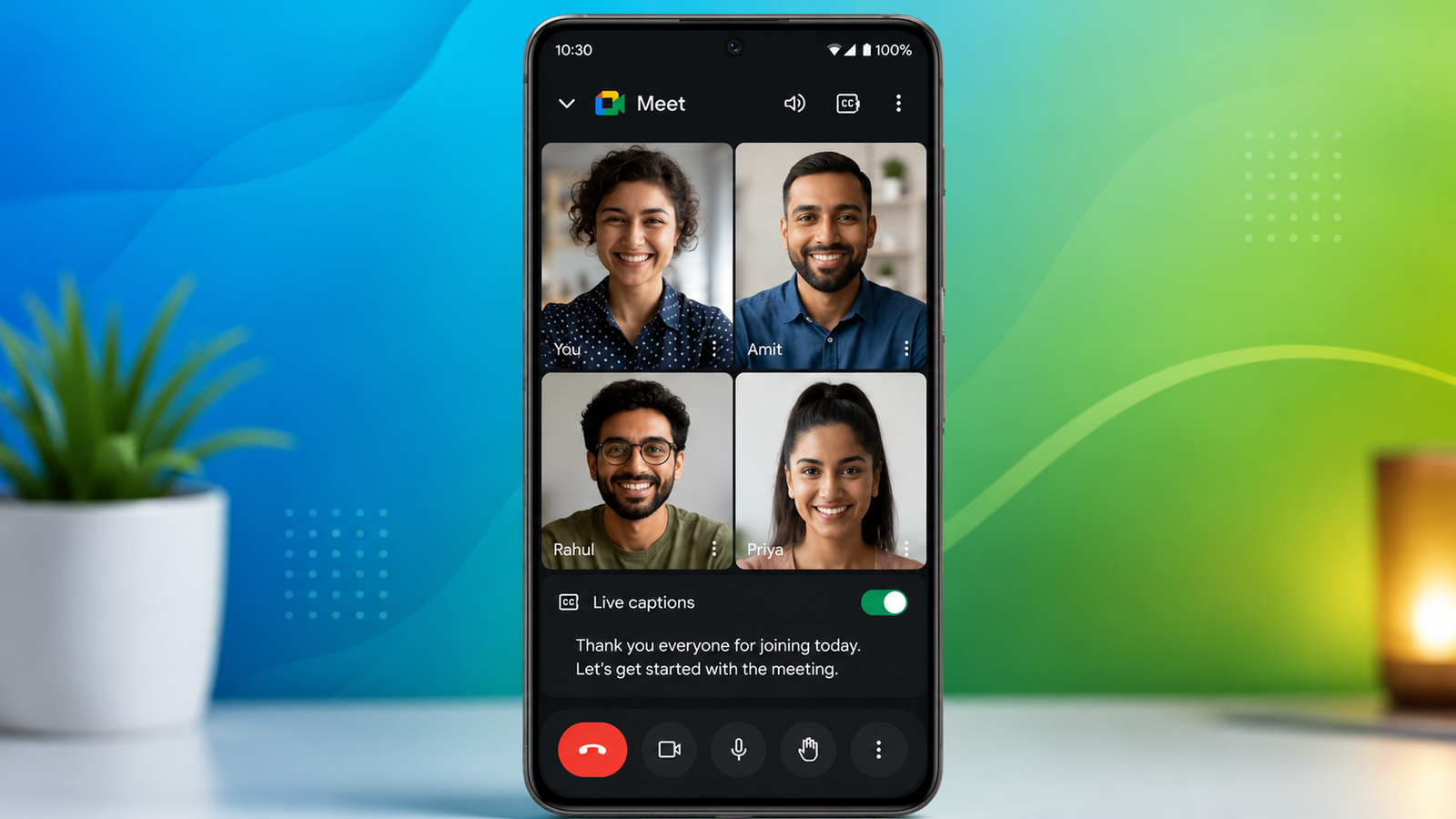
Online meetings have become an important part of work, education, and everyday communication. However, poor audio quality, background noise, or different speaking accents can sometimes make conversations difficult to follow. To help solve this, Google Meet offers a built-in Live Captions feature that converts spoken words into on-screen text in real time.
Whether you’re joining a business meeting, an online class, or a personal video call, Live Captions can make conversations easier to understand without requiring any additional software.
Also read: How to Stop Video Autoplay in Google Discover on Android
What Are Live Captions in Google Meet?
Live Captions is an accessibility feature in Google Meet that automatically displays speech as text while a meeting is in progress.
Using Google’s speech recognition technology, the feature listens to the conversation and generates captions almost instantly. Participants can read the text as people speak, making it easier to follow discussions even when audio isn’t perfectly clear.
The captions appear only during active meetings and can be turned on or off whenever needed.
Benefits of Using Live Captions
Many users enable Live Captions because they improve the overall meeting experience.
Some of the main advantages include:
- Easier understanding of conversations
- Better accessibility for people with hearing difficulties
- Support during noisy environments
- Improved clarity when speakers have different accents
- Helpful when audio quality is poor
- More comfortable participation during long meetings
For many users, reading captions alongside audio helps reduce misunderstandings during important discussions.
How to Turn On Live Captions on a Computer
If you’re using Google Meet on a desktop or laptop, enabling captions only takes a few clicks.
Follow these steps:
- Open Google Meet in your web browser.
- Join an existing meeting or create a new one.
- Click the Captions (CC) button if it’s visible, or open the More options menu by selecting the three dots.
- Choose Turn on captions.
Once enabled, captions will begin appearing automatically as participants speak.
How to Change the Caption Language
Google Meet also allows users to change the language used for Live Captions when supported.
To adjust the language:
- Open Settings during the meeting.
- Select Captions.
- Choose your preferred caption language.
Available languages may vary depending on your Google Meet version and account type.
Using Live Captions on Android and iPhone
The feature is also available in the Google Meet mobile app.
To enable captions:
- Open the Google Meet app.
- Join or start a meeting.
- Tap the More menu (three dots).
- Select Turn on captions or Show captions, depending on your app version.
The captions will begin appearing on your screen while the meeting continues.
If supported, you can also change the caption language through the app’s settings.
Things to Know Before Using Live Captions
Although Google’s speech recognition technology is highly advanced, caption accuracy depends on several factors.
Performance may vary based on:
- Speaker clarity
- Background noise
- Microphone quality
- Internet connection
- Speaking speed
- Language availability
Occasionally, certain words or names may not be recognized correctly, especially if audio quality is poor.
When Live Captions Can Be Most Helpful
This feature can improve communication in many situations, including:
- Online classes
- Business meetings
- Team collaboration
- Virtual interviews
- Webinars
- Group discussions
- International meetings
It is particularly useful when participants speak from different locations or use devices with varying audio quality.
Can You Turn Captions Off Later?
Yes. Live Captions are optional and can be disabled at any time during a meeting.
Simply return to the Captions button or the More options menu and switch the feature off. You can enable it again whenever needed without leaving the meeting.
Also read: Top 10 AI Tools for Photo Editing in 2026
Final Thoughts
Google Meet’s Live Captions feature offers a simple way to make online conversations more accessible and easier to understand. By displaying spoken words as text in real time, it helps participants follow discussions more comfortably, especially in situations where audio quality isn’t ideal.
Whether you’re attending a virtual class, participating in a work meeting, or joining a personal video call, enabling Live Captions takes only a few seconds and can greatly improve your overall meeting experience. Since the feature is available on both desktop and mobile devices, it’s a convenient option for anyone who wants clearer and more accessible communication during Google Meet sessions.