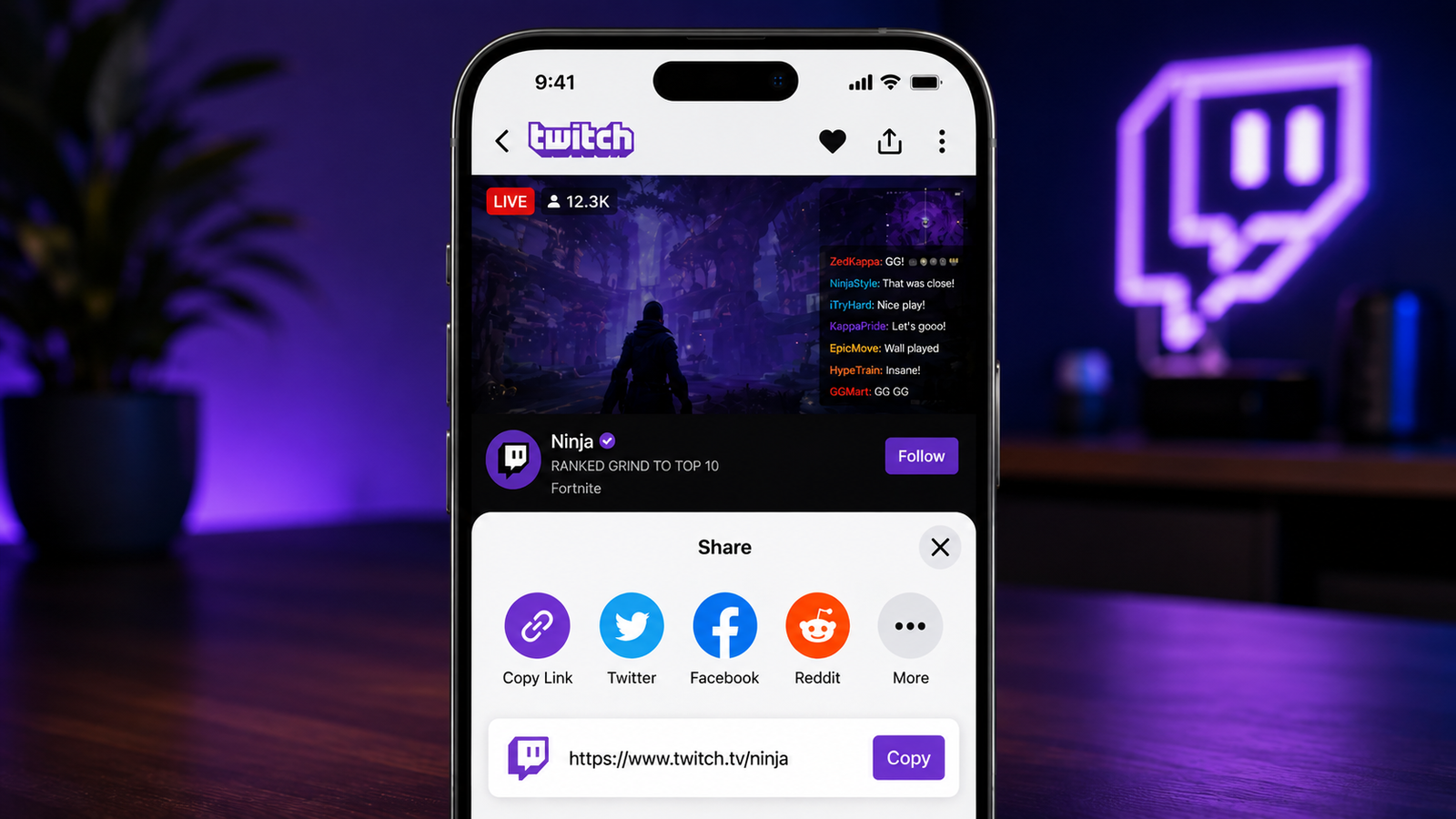
Twitch makes it easy to share live streams and channels with other people. Whether you have found an interesting streamer, want to invite friends to a live broadcast, or are promoting your own channel, you can share a Twitch link through messaging apps, social networks, email, and gaming communities.
For beginners, the process may seem confusing because Twitch provides different links depending on whether you want to share a particular stream or your entire channel. This guide explains the easiest ways to find and share both types of links.
Also read: How to Stop Your Phone From Overheating: Simple Ways to Keep It Cool
Share a Twitch Stream You’re Watching
If you are currently watching a Twitch broadcast and want someone else to join, you can share the stream directly from Twitch.
Steps to Share a Live Stream
- Open the Twitch website or mobile app.
- Find the live stream you want to share.
- Open the stream and make sure you are on the correct channel.
- Look for the Share option around the stream interface.
- Select the available sharing option you prefer.
- Choose Copy Link or Copy URL if you want to send the link manually.
After copying the link, you can paste it into a WhatsApp message, Discord chat, email, SMS, or a social media post.
If Twitch provides direct sharing options for a particular platform, you can also use those instead of copying the URL yourself.
How to Share Your Own Twitch Channel
If you are a streamer, you may want to share your channel rather than only one particular broadcast. Your channel link can be used repeatedly, even when you are not currently live.
The easiest way to find it is through your Twitch profile.
Find Your Channel URL
- Sign in to your Twitch account.
- Open your profile menu.
- Go to your Channel page.
- Once your channel opens, copy the web address from the browser’s address bar.
- Save the link somewhere convenient so you can use it whenever you promote your channel.
Your channel URL directs people to your Twitch profile, where they can see your available content and follow your account.
Share Your Twitch Link on Mobile
Sharing a Twitch link from a smartphone is also straightforward.
Open the Twitch app and navigate to the stream or channel you want to recommend. Look for the sharing option and select the app where you want to send the link.
For example, you can send it through:
- Instagram messages
- Discord
- SMS
- Other supported messaging apps
If you don’t see the app you want, use the option to copy the link and paste it manually.
Share Twitch Links on Social Media
Social media can be useful when you want to let a larger audience know about your stream.
You can post your Twitch channel URL along with a short message explaining what you are doing. If you’re currently live, mention the game, topic, or activity being streamed.
For example, instead of posting only a link, you could write something like:
“Going live with a new gaming session tonight. Join the stream here:”
Then add your Twitch link.
A short explanation gives people context before they decide whether to open the link.
Send Your Twitch Link Through Discord
Discord is particularly useful for gamers and online communities. If you have permission to share promotional content in a server, you can paste your Twitch URL into the appropriate channel.
You can also send the link directly to friends through a private message.
However, avoid repeatedly posting your Twitch link in unrelated channels. Many communities have specific rules regarding self-promotion, so check the server guidelines before sharing.
Share Your Channel Through Email or Messages
If you want to invite specific people to your stream, sending the link privately can be more appropriate than making a public post.
Copy your Twitch channel or stream URL and paste it into an email or message. Add a short explanation so the recipient knows what the link is for.
This approach works well when inviting:
- Friends
- Gaming teammates
- Existing followers
- Online communities
- People interested in a particular game
Stream Link vs. Channel Link: What’s the Difference?
Understanding the difference between these two links can help you choose the right one.
A stream link is useful when you want someone to watch a particular broadcast. It is ideal for sharing a live session or directing viewers to specific Twitch content.
A channel link, on the other hand, takes visitors to your Twitch profile. It is generally more convenient for long-term promotion because you can continue using the same channel address for future broadcasts.
If you’re promoting your Twitch account regularly, keeping your channel link saved makes the process much easier.
Add Context When Sharing Your Link
Simply dropping a URL into a conversation may not always encourage people to open it. A short, relevant message can make the link more useful.
Consider mentioning:
- What game you are playing
- What type of content you create
- Whether you’re currently live
- When your next stream begins
- Something interesting happening during the broadcast
Keep the message natural and avoid excessive promotional language.
Where Can You Share Twitch Links?
There are many places where Twitch links can be useful, provided that sharing is allowed.
Gaming Communities
Relevant gaming communities can help you connect with people who already enjoy the type of content you create. Always follow the community’s rules about promotion.
Social Networks
Social platforms can help you notify followers when you’re going live. You can share a stream URL or your permanent channel link depending on what you want people to see.
Private Chats
For a smaller audience, direct messages can be more appropriate. You can personally invite friends or followers without posting publicly.
Email is another simple option, especially when communicating with an existing audience or group.
Avoid Spamming Your Twitch Link
Sharing your channel can help people discover your content, but posting the same link repeatedly can have the opposite effect.
Instead of sending promotional links everywhere, focus on relevant audiences and communities. Follow platform rules and avoid unsolicited messages.
Building an audience generally works better when promotion is combined with useful conversations, regular content, and genuine interaction.
Tips for Better Twitch Promotion
A few simple habits can make sharing more effective:
- Keep your Twitch channel link easily accessible.
- Mention what viewers can expect from the stream.
- Share at times when your audience is likely to be active.
- Use relevant gaming communities rather than unrelated groups.
- Follow the rules of every platform and community.
- Avoid posting the same promotional message repeatedly.
- Interact with your audience instead of relying only on links.
The goal should be to make it easy for interested people to find your content rather than simply sharing the URL as often as possible.
Final Thoughts
Sharing a Twitch link is a simple way to introduce friends, followers, and gaming communities to a live broadcast or channel. You can copy a stream URL when you want to share a particular broadcast, while your channel link is more suitable for regular promotion.
For the best results, don’t share the link without context. Tell people what you’re streaming, add a brief message, and choose platforms where your audience is actually active.
Most importantly, keep your promotion relevant and respectful. Consistent content, genuine interaction, and thoughtful sharing can help more people discover your Twitch channel over time.