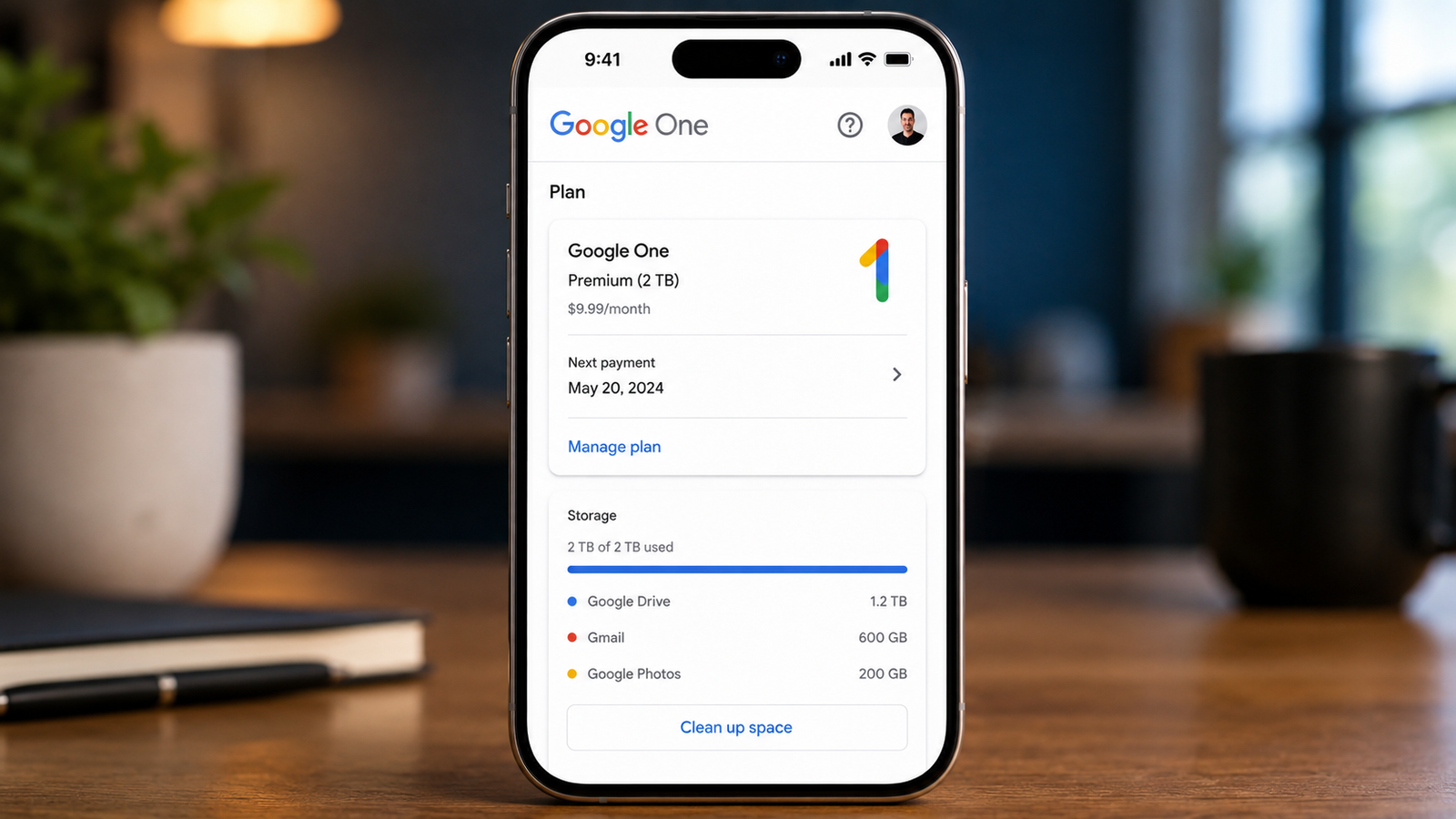
Cloud storage needs often change over time. If you’ve cleaned up your Google Drive, Gmail, or Google Photos, you may no longer need a high-capacity Google One subscription. Fortunately, Google allows you to move to a lower-priced storage plan without cancelling your membership.
In this guide, you’ll learn how to downgrade your Google One plan, what happens after the change, and a few important things to check before selecting a smaller storage option.
Also read: Best Google Pixel Battery Settings to Make Your Phone Last Longer
Can You Downgrade Your Google One Subscription?
Yes. Google lets subscribers switch to a lower storage plan whenever they want.
When you request a downgrade, your current subscription remains active until the end of the existing billing cycle. After that period ends, the new storage plan automatically becomes active, and Google sends a confirmation email with your updated subscription details.
This means you won’t lose access to your current benefits immediately after making the change.
How to Downgrade Google One Using the Mobile App
Changing your storage plan on an Android phone or iPhone is straightforward.
Follow these steps:
- Open the Google One app.
- Tap Membership.
- Locate your current storage plan.
- Select Manage plan.
- Scroll down and tap See more plans.
- Browse the available storage options.
- Select the plan that best fits your needs.
- Tap Downgrade.
- Confirm your selection.
- Wait for Google’s confirmation email.
Your existing subscription will continue until your next renewal date, after which the lower-priced plan will take effect automatically.
How to Downgrade Google One on a Computer
If you prefer using a browser, you can also change your subscription from your desktop.
Here’s how:
- Visit the Google One website and sign in.
- Open your account dashboard.
- Navigate to the Plans or Storage section.
- Click See all plans or See more plans.
- Review the available storage options.
- Choose your preferred lower-tier plan.
- Click Downgrade (or Subscribe, depending on the interface).
- Confirm the changes.
Google will continue your current subscription until the billing period ends before activating the new plan.
Why Isn’t the Downgrade Option Easy to Find?
Many users notice that Google promotes larger storage plans more prominently than lower-priced options.
The cheaper plans are usually hidden behind options such as:
- See more plans
- View all plans
- Compare plans
If you only see upgrade offers, don’t worry. Simply explore the additional plan menu to reveal every available subscription option.
Check Your Storage Usage Before Downgrading
Before moving to a smaller storage plan, review how much space you’re currently using.
If your files exceed the storage limit of your new plan, Google generally won’t delete your existing data. However, several Google services may stop working normally until you free up enough storage.
You could experience issues such as:
- Google Photos stopping new backups
- Gmail being unable to send or receive emails
- Google Drive preventing new uploads
- File synchronization pausing
- Difficulty creating new Docs, Sheets, or Slides files
Checking your storage usage beforehand can help you avoid these interruptions.
Free Up Storage Before Switching Plans
If you’re close to your storage limit, consider removing unnecessary files before your downgrade becomes active.
Google provides built-in cleanup tools to help identify large or unused items.
Some useful cleanup steps include:
- Open the Google One dashboard.
- Go to the Storage section.
- Select Clean up space.
- Review Google’s recommendations.
- Delete large files from Google Drive.
- Remove old emails with large attachments.
- Delete unwanted photos and videos.
- Empty the trash after confirming you no longer need the files.
Cleaning your account before switching plans makes the transition much smoother.
Back Up Important Files First
Before deleting anything, make sure your important data is safely backed up.
Good backup options include:
- Saving files to your computer.
- Copying them to an external hard drive or USB drive.
- Uploading them to another trusted cloud storage service.
Having multiple backups is always a smart practice, especially for valuable documents, family photos, or work-related files.
Benefits of Downgrading Your Google One Plan
Switching to a lower storage tier offers several advantages:
- Lower monthly subscription costs.
- Pay only for the storage you actually use.
- Keep your Google One membership active.
- Continue using your current plan until the renewal date.
- Easily upgrade again in the future if your storage needs increase.
Final Thoughts
Downgrading your Google One subscription is an easy way to reduce your monthly expenses without cancelling your membership. Although lower-priced plans aren’t always immediately visible, they can be found by browsing all available storage options in the Google One app or website.
Before making the switch, review your current storage usage, remove unnecessary files, and create backups of important data. A little preparation will help ensure a smooth transition while keeping your files secure and your Google services running without interruption.