A clean desktop can make your Windows PC feel more organized and improve your productivity. Over time, your desktop can become crowded with app shortcuts, files, folders, and other icons that make it difficult to find what you need. Fortunately, Windows includes several built-in options to help you manage desktop icons without installing any third-party software.
Also read: How to Switch to a Lower Google One Plan Without Cancelling Your Membership
Whether you want to delete unnecessary shortcuts, temporarily hide all desktop icons for a cleaner workspace, or restore an icon you accidentally removed, this guide will walk you through each method step by step.
Why Organize Your Desktop?
Keeping your desktop tidy offers several advantages, including:
- Makes important files easier to find.
- Creates a cleaner and more professional workspace.
- Reduces visual distractions.
- Improves productivity.
- Makes screen sharing and presentations look more organized.
The best part is that Windows gives you complete control over your desktop icons without affecting your installed programs.
Delete Unnecessary Desktop Icons
If your desktop contains shortcuts, files, or folders you no longer need, deleting them is the quickest way to reduce clutter.
Important: Deleting a desktop shortcut does not uninstall the actual application. It only removes the shortcut from your desktop.
Step 1: Open the Desktop
Press Windows + D on your keyboard to instantly display your desktop.
Step 2: Select the Icons
Click the icon you want to remove.
To select multiple icons at once:
- Hold the Ctrl key.
- Click each icon you want to select.
You can also drag your mouse to select multiple icons in one area.
Step 3: Delete the Selected Items
Once your icons are selected:
- Right-click one of them.
- Choose Delete.
- Confirm the action if Windows asks for permission.
The selected items will be moved to the Recycle Bin, allowing you to restore them later if necessary.
Another Quick Way to Remove Icons
Windows also lets you delete desktop items using drag and drop.
Simply:
- Select the icon or icons.
- Drag them to the Recycle Bin.
- Release the mouse button.
The items will be moved to the Recycle Bin instead of being permanently deleted.
Hide All Desktop Icons Without Deleting Them
Sometimes you may want a completely clean desktop without removing any files. This is especially useful during meetings, presentations, recording tutorials, or taking screenshots.
Windows includes a simple option to hide every desktop icon with a single click.
How to Hide Desktop Icons
Follow these steps:
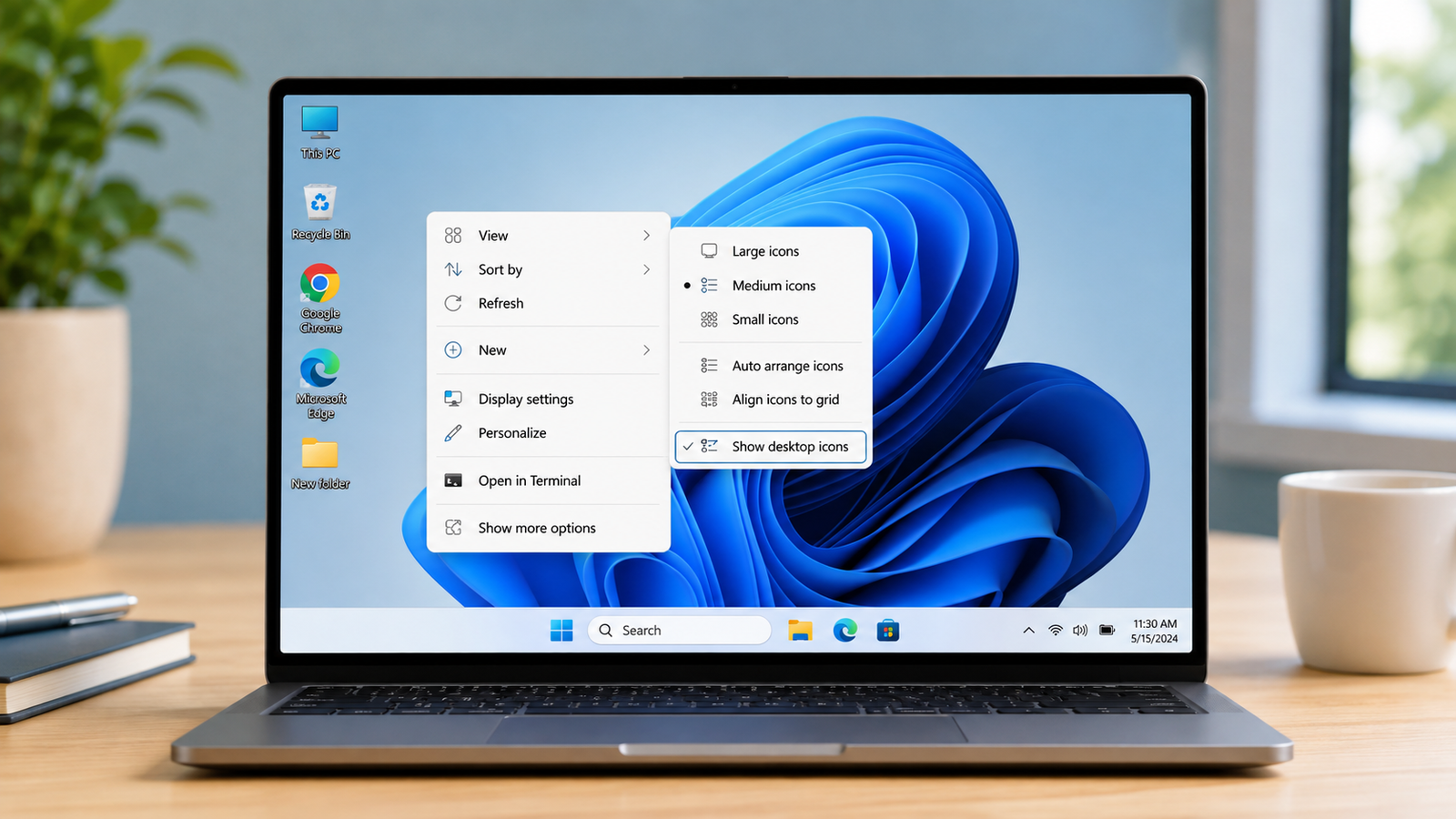
- Press Windows + D to show the desktop.
- Right-click an empty area.
- Select View.
- Click Show desktop icons to remove the checkmark.
Immediately, every desktop icon will disappear.
Don’t worry—nothing has been deleted. Windows simply hides the icons from view.
Show Desktop Icons Again
If you want your desktop icons back:
- Right-click an empty area of the desktop.
- Select View.
- Click Show desktop icons again.
The checkmark will return, and all your desktop icons will instantly reappear.
When Should You Hide Desktop Icons?
This feature is useful in many situations, including:
- Giving presentations.
- Sharing your screen during online meetings.
- Recording YouTube tutorials.
- Taking clean screenshots.
- Keeping personal files hidden temporarily.
- Creating a distraction-free workspace.
Since nothing is deleted, you can safely switch between visible and hidden icons whenever you like.
Restore Deleted Desktop Icons
If you accidentally remove a shortcut or file from your desktop, you can usually recover it through the Recycle Bin.
Restore Deleted Items
Follow these steps:
- Open the Recycle Bin.
- Locate the file or shortcut you want to recover.
- Right-click it.
- Select Restore.
Windows automatically places the item back in its original desktop location.
What If the Recycle Bin Is Empty?
If you’ve already emptied the Recycle Bin, restoring deleted items becomes much more difficult.
Depending on the situation, you may need to:
- Restore from a backup.
- Use File History (if enabled).
- Use Windows Recovery options.
- Try trusted file recovery software.
Success depends on whether the deleted data has been overwritten.
Restore Missing System Icons
Sometimes built-in Windows icons like This PC, Recycle Bin, Control Panel, or Network disappear without being deleted.
You can restore them through Windows settings.
For Windows 10 and Windows 11
- Open Settings.
- Go to Personalization.
- Select Themes.
- Click Desktop icon settings.
- Check the system icons you want to display.
- Click Apply, then OK.
The selected icons will immediately appear on your desktop.
Tips for Keeping Your Desktop Organized
A few simple habits can help keep your desktop clean over time:
- Remove shortcuts you no longer use.
- Store documents inside dedicated folders instead of leaving them on the desktop.
- Create folders for different projects.
- Delete duplicate shortcuts.
- Empty the Recycle Bin regularly after confirming you no longer need the files.
- Keep only your most frequently used shortcuts on the desktop.
These small changes can make your computer easier to use every day.
Final Thoughts
Managing desktop icons in Windows is quick and straightforward. Whether you want to remove unwanted shortcuts, temporarily hide every icon for a cleaner desktop, or recover something you deleted by mistake, Windows provides built-in tools to handle each task safely.
Keeping your desktop organized not only improves its appearance but also helps you work more efficiently. With just a few simple adjustments, you can maintain a clutter-free workspace while keeping important files and shortcuts easily accessible whenever you need them.