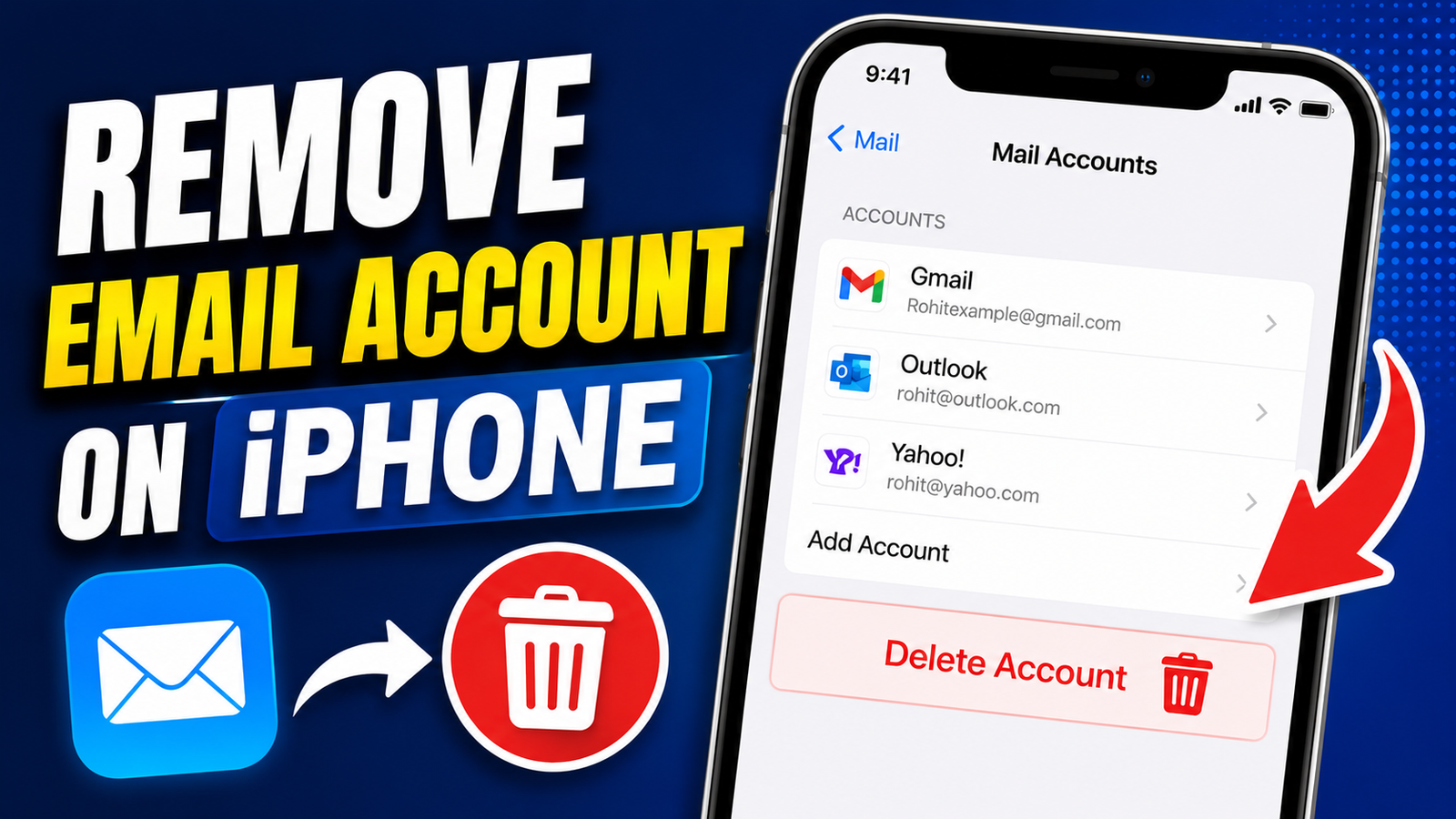
If you have stopped using an email address or simply want to clean up the Mail app on your iPhone, removing an email account is straightforward. You don’t need to delete the email address itself. Instead, you can disconnect it from your iPhone while keeping the account active with Gmail, Outlook, Yahoo, or another email provider.
This can also be useful if you’re switching to a different email service, giving your iPhone to someone else, or trying to reduce the number of accounts connected to the device.
In this guide, we’ll explain how to remove an email account, what happens afterward, and what you can do if you only want to stop receiving emails temporarily.
Also read: How to Take a Loan Using Aadhaar Card? Complete Guide for Beginners
Remove an Email Account From iPhone
The Mail app itself doesn’t provide the main option for removing an account. You need to manage your connected accounts through the iPhone’s Settings.
Follow these steps:
- Open Settings on your iPhone.
- Scroll down and tap Apps.
- Select Mail.
- Tap Mail Accounts.
- Choose the email account you want to disconnect.
- Tap Delete Account.
- Confirm the action when prompted.
Depending on your iOS version, the wording may be slightly different. You might see an option such as Delete From My iPhone instead.
Once confirmed, the selected account will no longer be connected to Apple’s Mail app on that iPhone.
Does Removing the Account Delete Your Email Address?
No. Removing an account from your iPhone is different from permanently deleting the email account.
For example, if you remove a Gmail account from your iPhone, your Gmail address still exists. You can continue using it through the Gmail website, another phone, a tablet, or a computer.
The same applies to other providers such as Outlook and Yahoo.
You can reconnect the account to your iPhone whenever you need it.
What Data May Be Removed From the iPhone?
An email account can sometimes synchronize more than just messages. Depending on the account and the options you enabled, removing it may also remove synchronized information from your iPhone.
This can include:
- Emails
- Contacts
- Calendars
- Notes
- Reminders
- Other account-related information
This does not necessarily mean the original information has been permanently deleted from the email provider. It may simply stop appearing on your iPhone because the account is no longer connected.
Before removing an account, check whether you have important contacts, calendar entries, or notes stored through it.
Will Your Emails Be Permanently Deleted?
For most commonly used email accounts, removing the account from an iPhone does not permanently erase messages stored on the email provider’s servers.
Accounts using services such as IMAP or Exchange generally keep messages synchronized with the provider. Once you add the account to another device, the available mail can normally be accessed again.
However, POP accounts can work differently because some messages may have been downloaded locally depending on the account configuration.
If you have important emails and aren’t sure where they are stored, consider backing them up before removing the account.
You Don’t Have to Remove the Account
Sometimes the problem isn’t the email account itself. You may simply want to stop receiving messages or notifications for a while.
In that situation, removing the entire account may be unnecessary.
Turn Off Mail for an Account
You can keep the account connected while disabling its Mail synchronization.
Go to:
Settings > Apps > Mail > Mail Accounts
Select the account and look for the Mail-related option. Turn it off if you don’t want messages from that account to appear in Apple Mail.
The exact options can vary depending on the account type and iOS version.
This can be useful if you want to keep other synchronized information, such as contacts or calendars, while temporarily stopping email synchronization.
Disable Email Notifications
If you’re mainly annoyed by constant alerts, you don’t need to disconnect the account.
You can change Mail’s notification settings instead:
- Open Settings.
- Tap Notifications.
- Select Mail.
- Adjust the notification settings for the relevant account.
You can choose to disable alerts or remove specific notification types, depending on the options available on your iPhone.
Your emails can continue arriving without producing constant notifications.
Use Focus to Silence Emails Temporarily
Focus can be another useful option if you only want to avoid email interruptions during certain periods.
For example, you might want to silence work-related email notifications after working hours while continuing to receive notifications from personal accounts.
This approach lets you keep your accounts connected without being disturbed throughout the day.
Hide an Inbox From the Mail App
If your main goal is to make the Mail app look less crowded, hiding an inbox may be enough.
Open the Mail app and go to the Mailboxes screen. Tap Edit and adjust which mailboxes are displayed.
This doesn’t disconnect or delete the email account. It only changes what you see inside the Mail app.
How to Add the Account Back Later
Removing an email account is reversible. If you decide to use the account again, you can add it back through Settings.
- Open Settings.
- Tap Apps.
- Select Mail.
- Tap Mail Accounts.
- Choose Add Account.
- Select your email provider.
- Enter your account information.
- Follow the instructions displayed on the screen.
After setup is complete, the account can appear in Apple Mail again.
What If the Email Account Is Not Working?
If you don’t want to remove the account but are having trouble receiving messages, first check your internet connection.
Make sure your iPhone isn’t in Airplane Mode and verify that Mail has access to cellular data if you’re using mobile data.
You can also check whether the email provider is experiencing an outage or whether your account requires you to sign in again.
Removing and adding the account again can sometimes resolve configuration problems, but it’s better to check your account information first.
Remove an Account Before Giving Away Your iPhone
If you’re selling, trading in, or giving your iPhone to someone else, removing personal email accounts is an important privacy step.
However, simply removing your email account isn’t enough when you’re transferring ownership of the entire device. You should also follow Apple’s recommended process for preparing an iPhone for another user, including backing up your information and erasing the device when appropriate.
This helps prevent your personal information from remaining on the phone.
Things to Check Before Removing an Account
Before tapping the delete option, take a moment to check:
- Whether important emails are stored elsewhere
- Whether contacts are synchronized with the account
- Whether calendars depend on the account
- Whether notes or reminders are connected to it
- Whether you need the account on another device
- Whether disabling Mail would solve the problem instead
These checks can help you avoid accidentally losing access to information that you still need on the iPhone.
Frequently Asked Questions
Does removing an email account delete the account permanently?
No. It only removes the account from your iPhone. The email account itself normally remains active with the provider.
Can I add the account again later?
Yes. You can use the Add Account option in your iPhone’s Mail settings to connect it again.
Will my contacts disappear?
Contacts synchronized through the removed account may no longer appear on the iPhone. Make sure important contacts are stored somewhere else before removing the account.
What if I only want to stop email notifications?
You don’t need to remove the account. You can adjust Mail notifications or use Focus to reduce interruptions.
Final Thoughts
Removing an email account from an iPhone is a simple way to disconnect an unused address from the Mail app. The process does not normally delete the email account itself, so you can continue accessing it from the web or another device.
Before removing an account, check whether it synchronizes contacts, calendars, notes, or other information. If you only want a break from email, disabling Mail synchronization or notifications may be a better choice.
Once you’re ready, you can remove the account through Settings > Apps > Mail > Mail Accounts and add it again whenever you need it.