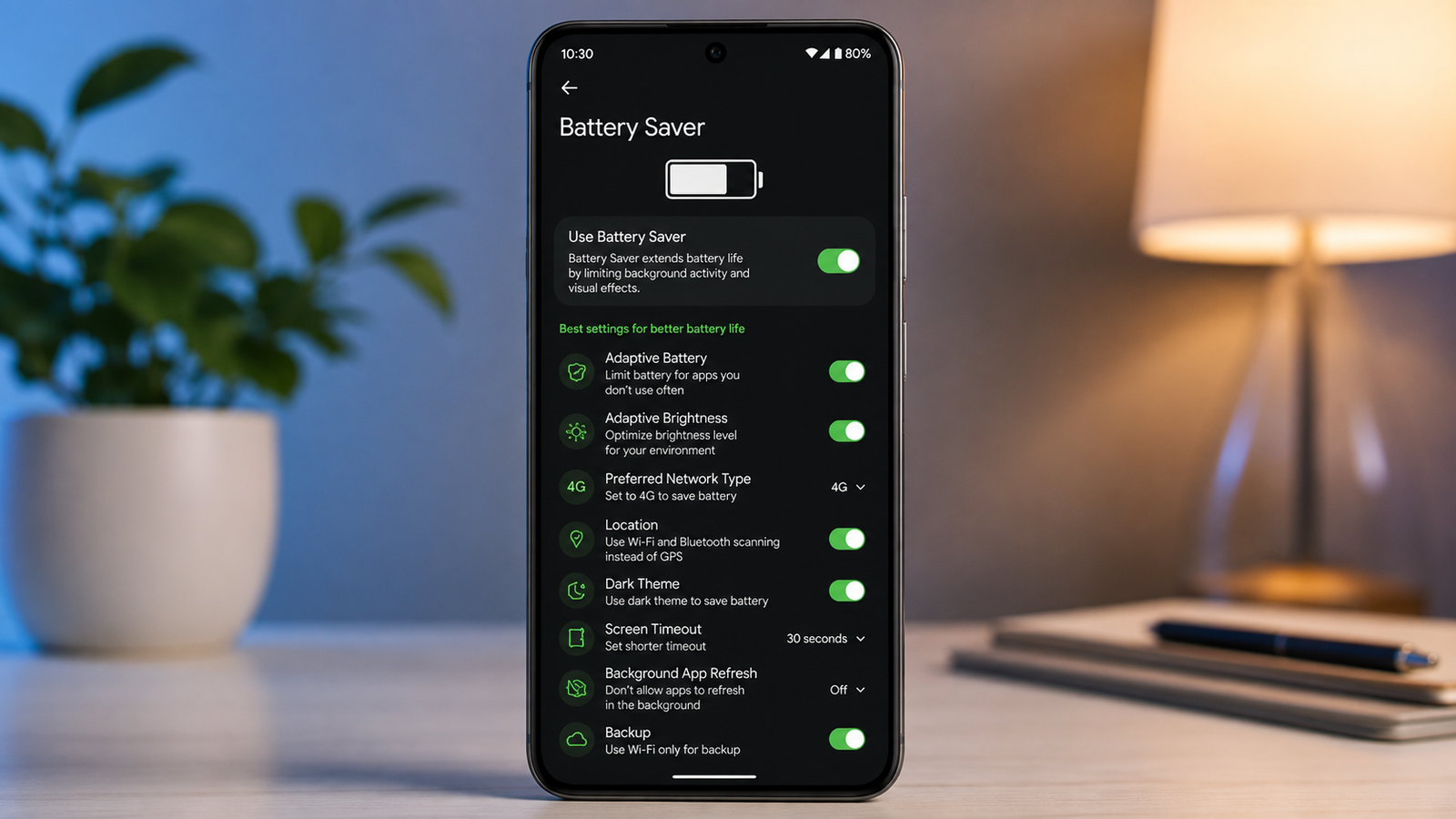
A long-lasting battery is one of the biggest advantages of any smartphone, and Google Pixel devices include several built-in features that can help you get more screen time without installing extra apps. By adjusting a few settings and adopting healthy charging habits, you can improve both your phone’s daily battery performance and its long-term battery health.
In this guide, we’ll explore the most effective Google Pixel settings that can help extend battery life while keeping your device running smoothly.
Also read: How to Use Roku Offline?
Monitor Battery Usage by Apps
Some apps consume far more power than others, especially when they continue working in the background after you’ve stopped using them.
To identify battery-hungry apps:
- Open Settings.
- Tap Battery.
- View your battery usage statistics.
If an application is using an unusually high amount of power, check whether you can limit its background activity. Reducing unnecessary background processes helps preserve battery throughout the day.
Turn On Battery Saver
Battery Saver is one of the easiest ways to reduce power consumption on a Google Pixel phone. When enabled, it limits background tasks, reduces visual effects, and helps the device operate more efficiently.
If you need even more battery life, you can also use Extreme Battery Saver. This mode temporarily pauses most non-essential apps while allowing important ones—such as Phone, Messages, Maps, or selected messaging apps—to remain available.
Instead of waiting until your battery is nearly empty, consider setting Battery Saver to activate automatically at around 40% or 50%.
Remove Accounts You No Longer Use
Every Google or third-party account connected to your phone regularly syncs emails, contacts, photos, or other information.
If you have accounts that you no longer use, removing them can reduce background syncing and help save battery.
Review your accounts occasionally and keep only those that are still necessary.
Protect Battery Health with Charging Features
Daily battery life is important, but maintaining your battery’s overall health is equally valuable.
Google Pixel includes charging features designed to reduce battery wear over time.
Enable Adaptive Charging
Adaptive Charging learns your charging routine.
Instead of charging your phone to 100% immediately, it completes the final portion of charging closer to the time you normally unplug your device. This reduces the amount of time the battery stays fully charged, helping extend its lifespan.
Use Charge Limit (Supported Devices)
Some Pixel models also offer a charging limit feature that stops charging at approximately 80%.
Keeping the battery below full charge during everyday use can reduce long-term battery stress.
For the best results:
- Try to keep the battery between 20% and 80% whenever practical.
- Use certified chargers and quality charging cables.
- Avoid leaving the phone plugged in unnecessarily after charging is complete.
Enable Dark Mode
Most Google Pixel phones feature OLED displays, where black pixels require significantly less power than bright colors.
Switching to Dark Mode can reduce battery consumption, especially if you frequently use your phone indoors or at higher brightness levels.
You can enable Dark Mode from the Display settings and enjoy both improved battery efficiency and a cleaner appearance.
Adjust Display Settings
The display is typically the largest source of battery usage on any smartphone.
A few simple adjustments can noticeably improve battery life.
Consider these settings:
- Lower screen brightness whenever possible.
- Enable Adaptive Brightness so your phone automatically adjusts brightness based on ambient lighting.
- Turn off Always-on Display if you rarely use it.
Reducing display power consumption can significantly extend battery life throughout the day.
Manage Wireless Features
Wireless connections continue consuming power even when they aren’t actively being used.
To improve efficiency:
- Turn off Wi-Fi when you’re away from wireless networks.
- Disable Bluetooth if no accessories are connected.
- Switch off Location services when navigation isn’t required.
- Turn off mobile data if internet access isn’t needed.
- Use Airplane Mode in areas with poor network coverage to prevent constant signal searching.
These small changes can help reduce unnecessary battery drain.
Control Background Apps and Notifications
Frequent notifications and background app activity can slowly reduce battery life.
For better performance:
- Keep your apps updated, as newer versions often include efficiency improvements.
- Disable notifications from apps that aren’t important.
- Limit unnecessary background activity where possible.
- Use balanced or optimized power settings if available on your device.
Managing background processes helps your phone use its battery more efficiently.
Avoid Extreme Temperatures
Battery performance is strongly affected by temperature.
Very hot conditions can accelerate battery wear, while extremely cold temperatures may temporarily reduce battery performance.
To protect your battery:
- Avoid leaving your phone in direct sunlight.
- Don’t keep it inside a hot car for extended periods.
- Prevent prolonged exposure to freezing temperatures whenever possible.
Maintaining a moderate temperature helps preserve battery health over the long term.
Simple Habits That Improve Battery Life
Small daily habits can make a noticeable difference over time.
Helpful practices include:
- Disable unnecessary Wi-Fi scanning.
- Review display and battery settings regularly.
- Use reliable chargers and accessories.
- Avoid accessories with excessive lighting effects that consume additional power.
- Restart your phone occasionally to refresh background processes.
While each adjustment saves only a small amount of power, combining several of them can noticeably improve battery performance.
Final Thoughts
Google Pixel phones include several built-in features designed to maximize battery efficiency without affecting your everyday experience. Monitoring battery usage, enabling Battery Saver, using Adaptive Charging, adjusting display settings, and managing background activity are all simple ways to make your battery last longer.
By combining these settings with good charging habits, you can enjoy longer daily battery life while also helping preserve your Pixel’s battery health for years to come.