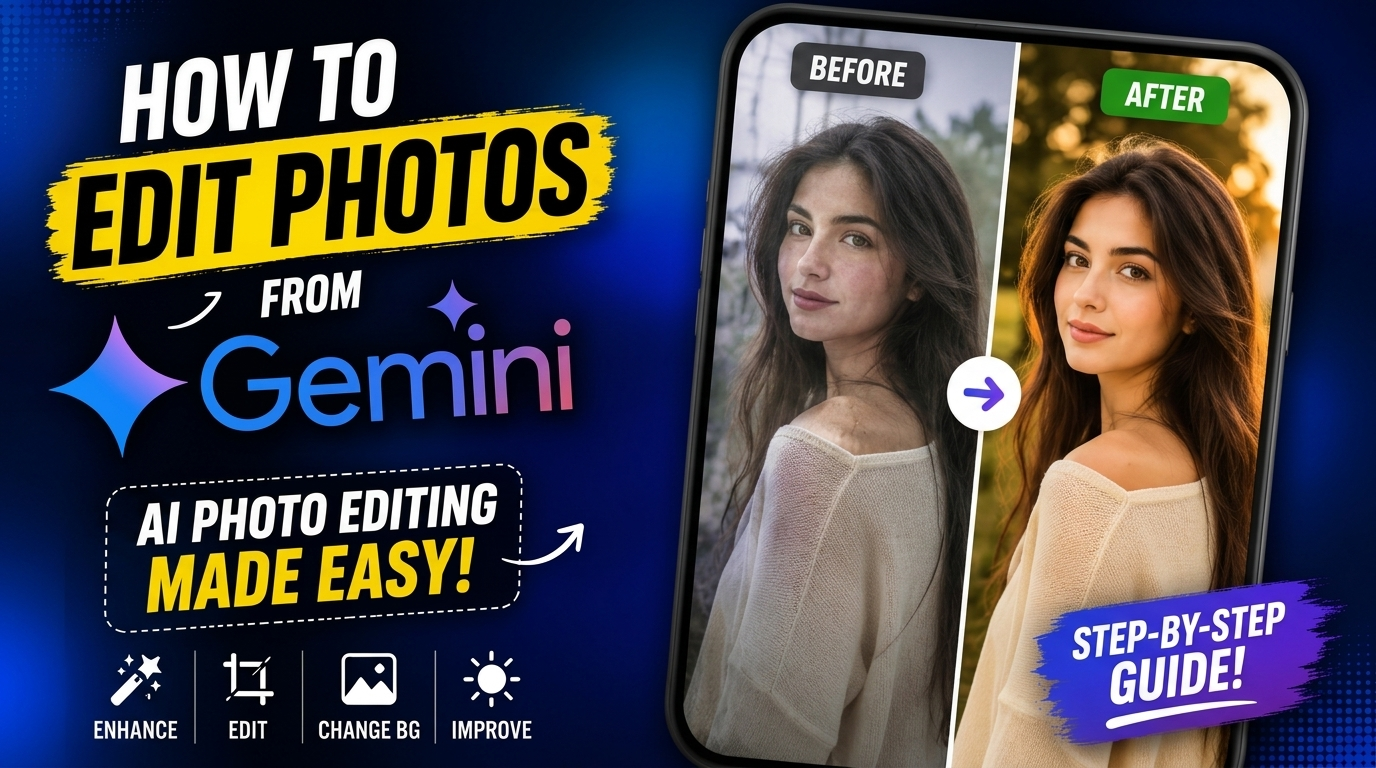
AI photo editing is becoming more popular every day, and one tool that many people are curious about is Google’s Google Gemini. From improving image quality to changing backgrounds and creating creative effects, Gemini is helping users edit photos faster and more easily than traditional editing methods.
The best part is that you do not need advanced editing skills to use it. Even beginners can create impressive edits using simple text prompts.
In this guide, you will learn how to edit photos from Gemini step by step, including how it works, what features it offers, useful prompts, common mistakes to avoid, and practical tips to get better results.
What Is Gemini AI?
Google Gemini is an AI-powered assistant developed by Google. It can answer questions, generate content, analyze images, and help with creative tasks like photo editing and image generation.
Gemini uses artificial intelligence to understand text instructions. This means you can simply upload a photo and describe the edits you want in plain English.
For example:
- “Remove the background.”
- “Make this image cinematic.”
- “Enhance lighting naturally.”
- “Change the sky to sunset.”
Gemini processes the request and generates an edited version of the image.

Also read: How to Create Prompts for Photo Editing Like a Pro
Why People Use Gemini for Photo Editing
Traditional editing software can sometimes feel complicated for beginners. Gemini simplifies the process by letting users edit photos through text instructions instead of manual tools.
Here are some major reasons why people use Gemini for editing photos:
- Beginner-friendly interface
- Faster editing process
- AI-powered enhancements
- Creative image transformations
- No professional editing skills required
- Useful for social media content
- Saves time compared to manual editing
Many bloggers, content creators, students, and social media users are now using AI tools for quick edits and creative visuals.

Can Gemini Directly Edit Photos?
Gemini’s photo editing features may vary depending on the platform, device, and updates available in your region. In many cases, Gemini works together with Google’s AI image tools to generate or modify images based on prompts.
Currently, users mainly use Gemini for:
- Generating editing ideas
- Creating editing prompts
- AI-assisted image transformations
- Enhancing uploaded images
- Background changes
- Style modifications
Google continues improving Gemini’s image capabilities, so features may become more advanced over time.
How to Edit Photos Using Gemini
Here is the step-by-step process beginners can follow.
Step 1: Open Gemini
Visit the official Gemini platform or app from your device.
You can use Gemini on:
- Android phones
- iPhones
- Desktop browsers
- Tablets
Make sure you are logged into your Google account.
Step 2: Upload Your Photo
After opening Gemini, look for the image upload option. Select the photo you want to edit from your gallery or computer.
Choose a high-quality image for better editing results.
Step 3: Write a Clear Editing Prompt
This is the most important step.
Gemini works best when your instructions are clear and specific.
For example:
Basic Prompt
“Enhance this portrait with natural lighting and sharp details.”
Advanced Prompt
“Create a cinematic portrait with soft warm lighting, realistic skin tones, blurred background, and DSLR-style quality.”
The more clearly you describe your desired result, the better the output will be.
Best Types of Photo Edits You Can Do With Gemini
Gemini can help with many kinds of image edits.
Background Removal
You can remove distracting backgrounds easily.
Example Prompt:
“Remove the background and replace it with a clean white studio background.”
This is useful for:
- Product photography
- Professional profile pictures
- E-commerce images
Cinematic Effects
Cinematic edits are popular on social media platforms.
Example Prompt:
“Make this image cinematic with dramatic shadows, orange and teal color grading, and movie-style lighting.”
Color Enhancement
Gemini can improve dull-looking photos.
Example Prompt:
“Boost colors naturally while keeping the image realistic.”
Portrait Retouching
AI can improve portraits while keeping them natural.
Example Prompt:
“Smooth skin naturally, sharpen eyes, and improve facial lighting.”
Sky Replacement
Changing the sky can completely transform an image.
Example Prompt:
“Replace the cloudy sky with a colorful sunset sky.”
Vintage or Retro Effects
Many users enjoy old-film aesthetics.
Example Prompt:
“Turn this image into a 90s vintage film-style photo with grain and faded colors.”
Tips for Writing Better Gemini Editing Prompts
The quality of your prompt directly affects the final result.
Here are some useful prompt-writing tips.
Be Specific
Instead of saying:
“Make it better.”
Try this:
“Enhance brightness, improve sharpness, and create soft natural lighting.”
Specific instructions help Gemini understand exactly what you want.
Mention Style Clearly
Style keywords help improve the output.
Useful style keywords include:
- Cinematic
- Realistic
- Vintage
- Professional photography
- Hyper detailed
- Soft lighting
- HDR
- Ultra realistic
Avoid Overloading the Prompt
Too many instructions can confuse the AI.
Keep your prompts clear and focused.
Experiment With Variations
Sometimes small wording changes create completely different results.
For example:
- “Golden hour lighting”
- “Warm sunset lighting”
- “Soft evening sunlight”
Each phrase creates a different mood.
Example Gemini Photo Editing Prompts
Here are some ready-to-use prompts.
Instagram Photo Prompt
“Enhance this selfie with clean skin tones, vibrant colors, natural lighting, and social media aesthetic.”
Travel Photo Prompt
“Improve this travel photo with dramatic sky, vibrant scenery, sharp details, and cinematic atmosphere.”
Product Photography Prompt
“Create a professional product photo with clean background, soft shadow, and commercial lighting.”
Moody Portrait Prompt
“Turn this portrait into a dark moody cinematic image with deep shadows and realistic textures.”
Common Mistakes Beginners Make
Many beginners struggle because of simple prompt mistakes.
Using Very Short Prompts
Short prompts usually produce weak results.
Bad Example:
“Edit this photo.”
Better Example:
“Enhance this portrait with warm cinematic lighting and realistic skin texture.”
Adding Conflicting Instructions
Avoid prompts like:
“Make it dark, bright, colorful, black-and-white, and realistic cartoon style.”
Confusing instructions often create poor outputs.
Ignoring Image Quality
Low-resolution images may not edit properly.
Always upload clear, high-quality photos when possible.
Is Gemini Better Than Traditional Photo Editing?
Gemini is excellent for quick edits and creative experimentation, but professional editing software still offers more manual control.
Here’s a simple comparison:
| Gemini AI Editing | Traditional Editing Software |
|---|---|
| Fast and beginner-friendly | More advanced controls |
| Prompt-based editing | Manual editing tools |
| Easier for non-editors | Requires learning |
| Great for quick content | Better for professional projects |
Many creators now combine both methods for better results.
Who Should Use Gemini for Photo Editing?
Gemini can be useful for many types of users.
Content Creators
Quick social media edits and thumbnails.
Bloggers
Featured images and article graphics.
Students
Creative projects and presentations.
Small Businesses
Simple product and marketing visuals.
Beginners
Easy editing without learning complicated software.
The Future of AI Photo Editing With Gemini
AI editing technology is evolving rapidly. Future versions of Gemini may offer:
- Real-time editing
- Voice-based editing instructions
- More realistic AI-generated effects
- Better object replacement
- Advanced video editing support
As AI improves, editing photos will become faster and more accessible for everyone.
Final Thoughts
Learning how to edit photos from Gemini is easier than many people think. You do not need professional editing experience or expensive software to create impressive visuals anymore.
The key to getting good results is writing clear prompts and experimenting with different styles. Whether you want cinematic edits, portrait retouching, background replacement, or social media enhancements, Gemini can help simplify the process.
Start with simple edits, learn how prompts affect the output, and gradually try more advanced creative instructions.
With practice, you can create professional-looking AI-edited photos in just a few minutes.