Running out of mobile data before your recharge plan expires can be frustrating. Whether you use mobile internet for YouTube, Instagram, online gaming, or video calls, certain apps can consume your daily data allowance surprisingly quickly.
Fortunately, Android smartphones include built-in data management features that help you monitor internet consumption. You can set a data usage warning, check which apps consume the most data, and even configure a data limit on supported devices.
In this guide, we’ll explain how to set a mobile data warning on Android, manage daily data consumption, and prevent unnecessary internet usage.
Also read: How to Tell If Someone Blocked You on Snapchat: 6 Signs to Check
What Is a Mobile Data Usage Warning?
A mobile data warning is an Android feature that notifies you when your internet consumption reaches a specified amount.
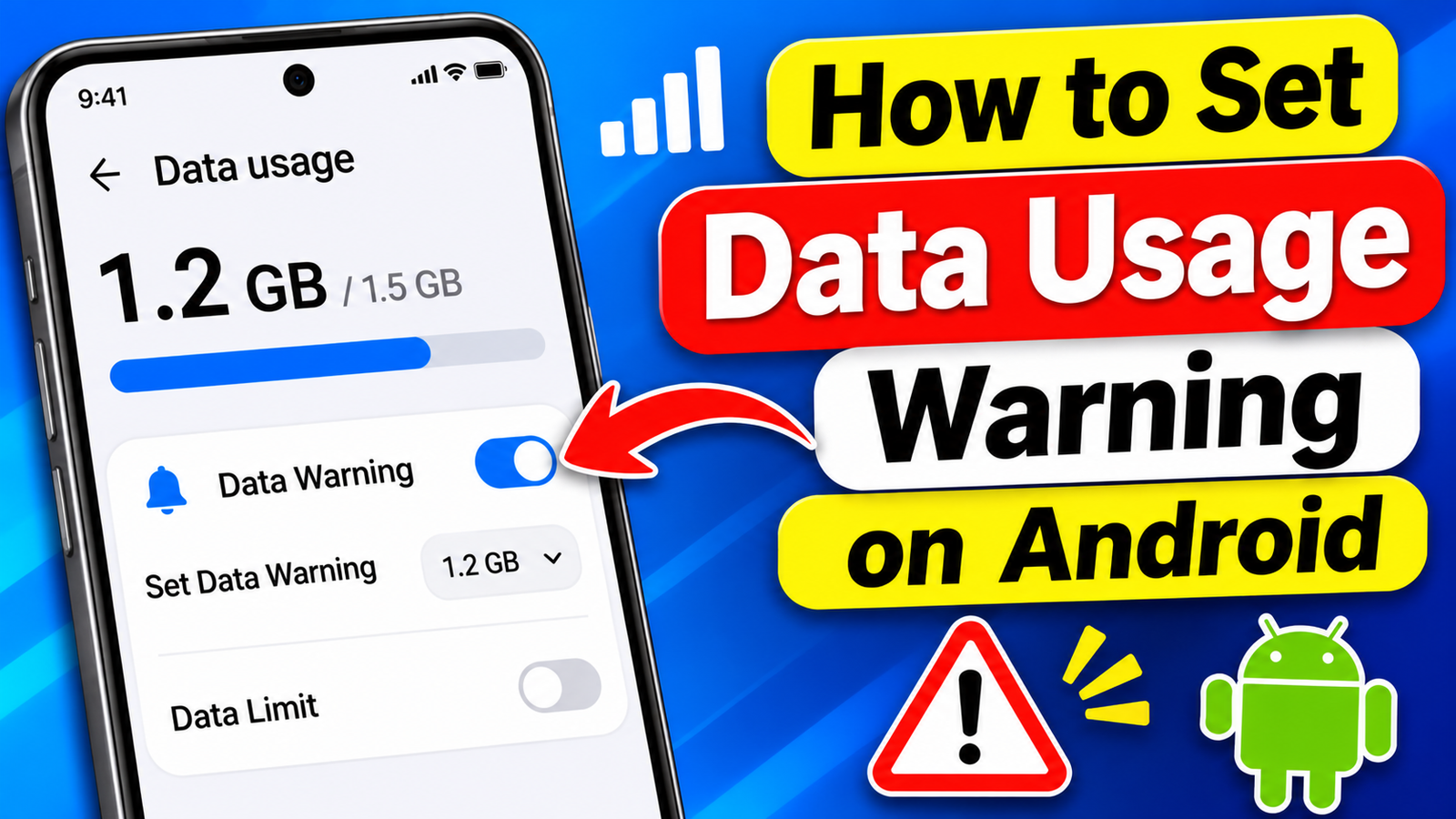
For example, if your recharge plan provides 1.5GB of data per day, you can set a warning at 1.2GB. Once your usage reaches that amount, your phone displays a notification.
This gives you an opportunity to reduce internet usage before exhausting your available data.
The best part is that you generally don’t need to download any additional application to use this feature.
How to Set a Data Usage Warning on Android
Follow these steps to enable a mobile data warning on your Android smartphone.
Step 1: Open Your Phone Settings
First, unlock your smartphone and open the Settings application.
Depending on your device, navigate to one of these sections:
- Mobile Network
- SIM Cards & Mobile Networks
- Connections
- Network & Internet
These options may have different names depending on your smartphone manufacturer.
Step 2: Find the Data Usage Option
After opening the mobile network settings, look for Data Usage or Mobile Data Usage.
If your smartphone supports multiple SIM cards, select the SIM card you currently use for internet access.
You should now see information about your mobile data consumption.
Step 3: Enable Data Usage Warning
Find an option called Data Warning & Limit, Billing Cycle & Data Warning, or something similar.
Open it and enable the Set Data Warning option.
Enter the amount of mobile data at which you want to receive a notification.
For example, if your daily data allowance is 1.5GB, you can select 1.2GB as your warning threshold.
Your smartphone will notify you when its usage counter reaches the selected amount.
Step 4: Save Your Settings
After entering the warning amount, save the changes if required.
Your Android phone will now monitor mobile data consumption and display a warning when the configured threshold is reached.
Data Warning vs Data Limit: Understand the Difference
Android provides two different options that are important to understand before changing your settings.
Data Warning: This feature simply sends a notification when your mobile data reaches the selected amount. It does not normally disconnect your internet connection.
Data Limit: This option can automatically disable mobile data when the configured limit is reached.
For example, if you set a data limit of 1.5GB, Android may turn off mobile internet after reaching that amount.
If you only want to receive notifications without interrupting your internet connection, enable Data Warning and keep Data Limit disabled.
How to Set a Daily Data Limit on Android
Some Android smartphones provide additional options for managing daily internet consumption.
To check whether your phone supports this feature:
- Open Settings.
- Select Mobile Network or SIM Cards & Mobile Networks.
- Tap Data Usage.
- Look for Daily Data Usage or Data Usage Limit.
- Enable the available option.
- Enter your preferred data allowance.
For a 1.5GB daily recharge plan, you might choose a warning threshold of 1.2GB.
However, remember that daily data management options are not available on every Android smartphone. Some devices only provide billing-cycle-based warnings and limits.
How to Change Your Mobile Data Usage Cycle
Setting the correct billing cycle is important because Android uses this information to calculate your data consumption over a selected period.
Suppose your monthly recharge starts on the 14th. If your phone resets its data counter on the 1st, the displayed usage might not match your actual recharge period.
To change the cycle:
- Open your phone’s Settings.
- Navigate to Mobile Network or Data Usage.
- Select Data Warning & Limit.
- Find Billing Cycle or Mobile Data Usage Cycle.
- Select the date when your recharge period begins.
- Save the changes.
Your phone will now calculate usage according to the selected cycle.
Check Which Apps Are Consuming the Most Mobile Data
If your internet allowance runs out quickly, checking individual app usage can help identify the problem.
Go to Settings → Mobile Network → Data Usage and look for the app-wise data consumption section.
Here, you can see how much mobile data different applications have used.
Video streaming platforms, social media applications, and online games can consume significant amounts of data, depending on your usage.
If an application uses too much background data, consider restricting its background internet access.
Enable Data Saver to Reduce Internet Consumption
Android also includes a feature called Data Saver, which helps reduce unnecessary background mobile data usage.
To enable it:
- Open Settings.
- Go to Network & Internet or Mobile Network.
- Select Data Usage.
- Find Data Saver.
- Turn it on.
When enabled, Data Saver restricts background data activity for many applications.
Some apps may update their content only when you open them. You can also allow selected applications to use unrestricted data if necessary.
How to Display Data Usage in the Status Bar
Some smartphone manufacturers provide an option to display real-time data usage or network information in the status bar.
You can check the following settings:
- Settings → Notifications & Status Bar
- Settings → Display → Status Bar
Look for options such as Show Data Usage or Real-Time Network Speed.
If your phone supports this feature, enabling it can make monitoring internet activity more convenient.
Why Does My Phone Show Different Data Usage Than My Telecom App?
You might occasionally notice that Android displays a different data consumption figure compared with your mobile operator’s application.
This can happen because your smartphone and network provider measure data usage differently.
Differences in session reporting, measurement methods, and update timing can affect the displayed figures.
For the most accurate information about your remaining recharge allowance, check your telecom operator’s official application.
Frequently Asked Questions (FAQs)
1. Can I set a mobile data warning on Android?
Yes. Most Android smartphones include a data warning feature under Mobile Network or Data Usage settings.
2. Will mobile data stop automatically after receiving a warning?
No. A data warning normally displays a notification without disconnecting your internet. Automatic disconnection is associated with the Data Limit feature.
3. Can I set a 1.5GB daily data warning?
You can set a 1.5GB warning if your phone supports the required data settings. However, some Android devices only provide monthly billing-cycle-based controls.
4. How can I check which app uses the most internet?
Open Settings, navigate to Data Usage, and check the individual app consumption details.
5. Does Data Saver reduce mobile data consumption?
Yes. Data Saver can restrict background mobile data usage and help reduce unnecessary internet consumption.
6. Why is my Android data usage different from my operator’s app?
Small differences can occur because Android and your network provider may calculate and update data usage differently.
7. Can I turn off the data warning notification?
Yes. Open Data Warning & Limit in your phone settings and disable the warning option or change its threshold.
Final Thoughts
Setting a mobile data usage warning is a simple way to manage your internet consumption and avoid exhausting your recharge allowance unexpectedly.
Android’s built-in features allow you to monitor data usage, receive notifications, identify data-hungry applications, and restrict unnecessary background activity.
For better results, configure your billing cycle correctly, choose a warning amount below your actual data allowance, and enable Data Saver whenever necessary.
Although the exact settings differ between Samsung, Redmi, Vivo, OPPO, Realme, and other Android smartphones, most devices provide some form of mobile data monitoring.
With a few simple adjustments, you can keep better track of your internet usage and make your daily data last longer.