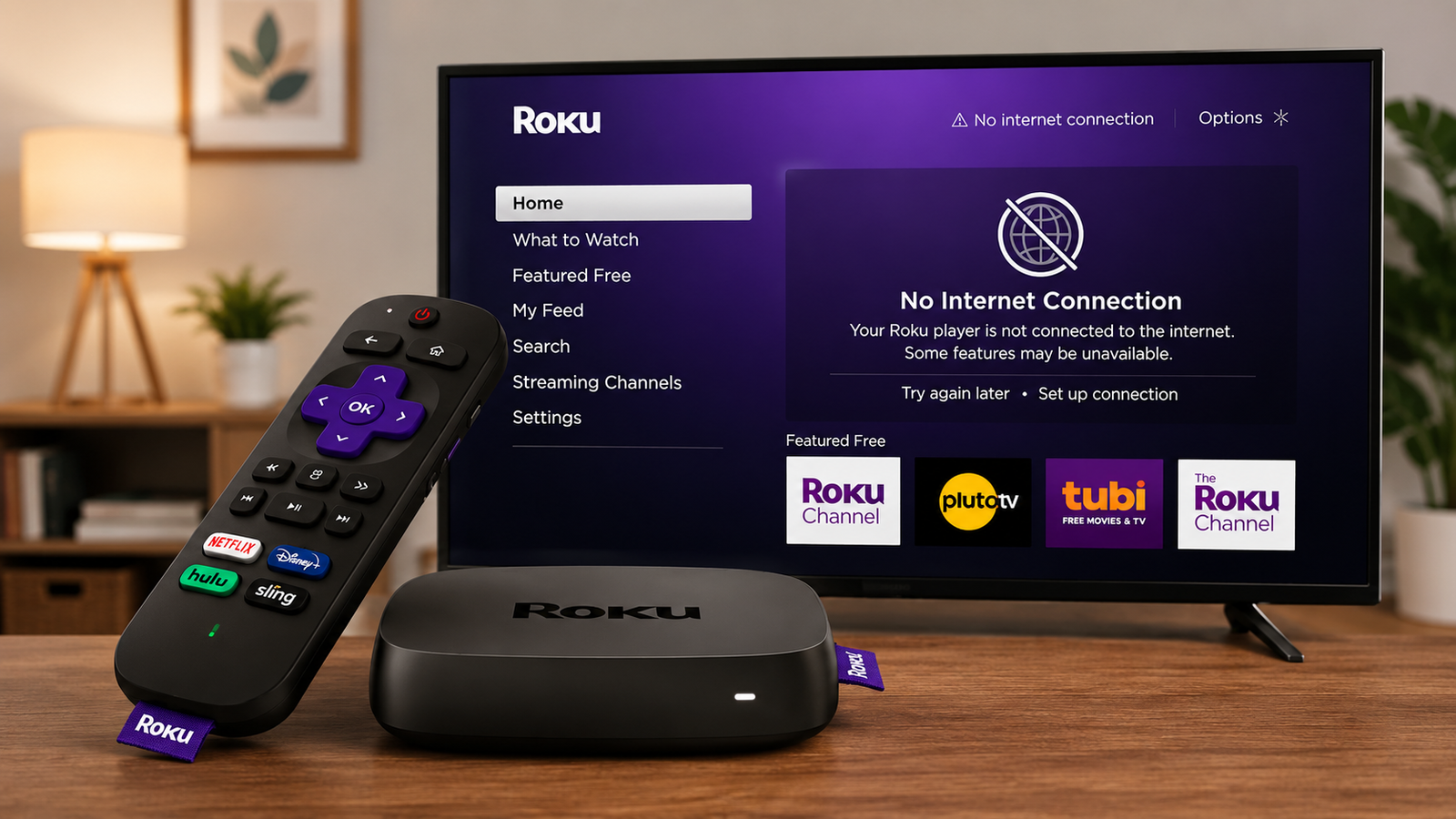
Roku devices are best known for streaming content from online services, but they can still be useful when your internet connection is unavailable. If you’ve prepared your device in advance, you can watch local media, access files stored on your home network, or even enjoy free over-the-air television without needing an active internet connection.
This guide explains the different ways to use Roku offline and what you need to set up beforehand.
Also read: How to Reduce Unwanted Ads on Your Android Phone?
Can Roku Work Without the Internet?
Yes, but with some limitations.
Without an internet connection, streaming services like Netflix, YouTube, Disney+, and Prime Video won’t work. However, Roku can still play locally stored media and access content available on your home network, provided the necessary apps and files are already set up.
Planning ahead is the key to making Roku useful during an internet outage.
Watch Videos from a USB Drive
One of the simplest offline options is playing media directly from a USB storage device.
Before disconnecting from the internet, install the Roku Media Player app from the Roku Channel Store. Once installed, the app can continue working even if your internet connection is unavailable.
After that:
- Copy your movies, TV shows, or personal videos to a compatible USB drive.
- Insert the USB drive into your Roku device or Roku TV (if supported).
- Open Roku Media Player.
- Select the USB device.
- Browse your files and start playback.
This method is ideal for watching downloaded content during internet outages.
Supported Video Formats
Roku Media Player supports several common video formats, although compatibility may vary by device model.
Popular supported formats include:
- MP4
- MOV
- M4V
- MKV
- WebM
If a video doesn’t play correctly, converting it to a supported format may resolve the issue.
Check USB Compatibility
Not every Roku device includes a USB port.
In general:
- Most Roku TVs provide one or more USB ports.
- Some Roku streaming players support USB storage.
- Many Roku Streaming Stick models do not include USB ports.
It’s also worth noting that some external hard drives require more power than certain Roku devices can supply. A standard USB flash drive is usually the most reliable choice.
Stream Files Through Your Home Network
Even if your internet service is down, your local Wi-Fi network may still function.
If your Roku and computer are connected to the same home network, you can stream media stored on your computer or a Network Attached Storage (NAS) device.
To use this method:
- Connect both devices to the same local network.
- Open Roku Media Player.
- Select your shared computer or NAS from the available sources.
- Browse and play your saved media.
This allows you to enjoy your offline library without copying files to a USB drive.
Supported Storage Formats
When accessing media from storage devices, Roku generally supports several common file systems, including:
- FAT16
- FAT32
- NTFS
- exFAT
- EXT2
- EXT3
- HFS+
Support may differ slightly depending on the Roku model and software version.
Organize Your Library with a Media Server
If you maintain a large collection of movies, TV shows, or music, using a media server can provide a more organized viewing experience.
Popular media server applications include:
- Plex
- Emby
- Jellyfin
These platforms organize your media into searchable libraries with artwork, descriptions, and categories.
Some media servers can also convert unsupported video formats automatically, improving compatibility with Roku devices.
For offline use, make sure the media server is fully configured before your internet connection becomes unavailable. As long as your Roku and media server remain connected to the same local network, you can continue accessing your content.
Watch Free Local TV with a Digital Antenna
If you own a Roku TV, you can also watch broadcast television without using the internet.
Simply connect a compatible digital antenna to your TV and scan for available channels.
Depending on your location, you may receive:
- Local news
- Sports broadcasts
- Weather updates
- Public television
- Other free over-the-air channels
The number of available channels depends on signal strength and your distance from local broadcast towers.
If reception is weak, using an antenna with a built-in amplifier may improve channel availability.
Tips for Using Roku Offline
To make the most of Roku without internet access, consider these recommendations:
- Install Roku Media Player before an outage occurs.
- Keep important videos stored on a USB drive.
- Organize your media library on a computer or NAS.
- Set up a media server in advance if you have a large collection.
- Keep your Roku software updated whenever internet access is available.
- Test your offline setup before you actually need it.
Preparing ahead of time ensures you can continue enjoying entertainment even if your internet service is interrupted.
Final Thoughts
Although Roku is primarily designed for online streaming, it still offers several useful offline features. With a little preparation, you can watch videos from a USB drive, stream files across your local network, organize your media with a server, or enjoy free over-the-air television on compatible Roku TVs.
While these options won’t replace online streaming services, they can provide reliable entertainment whenever your internet connection is unavailable, making your Roku device more versatile than many users realize.